MCP
WYSIWYG Web Builder includes built-in Model Context Protocol (MCP) support, allowing compatible AI agents and development tools to interact directly with your website project.
Unlike tools that only work with generated HTML, an MCP-connected AI agent can access structured information about your pages, objects, properties, relationships, capabilities, styles, and responsive behavior. This gives the agent a much deeper understanding of the project and allows it to make changes using WYSIWYG Web Builder's own features and settings.
Examples of MCP-compatible clients include ChatGPT, Google Antigravity, Claude Code, Cursor, LM Studio, and other tools that support the Model Context Protocol.
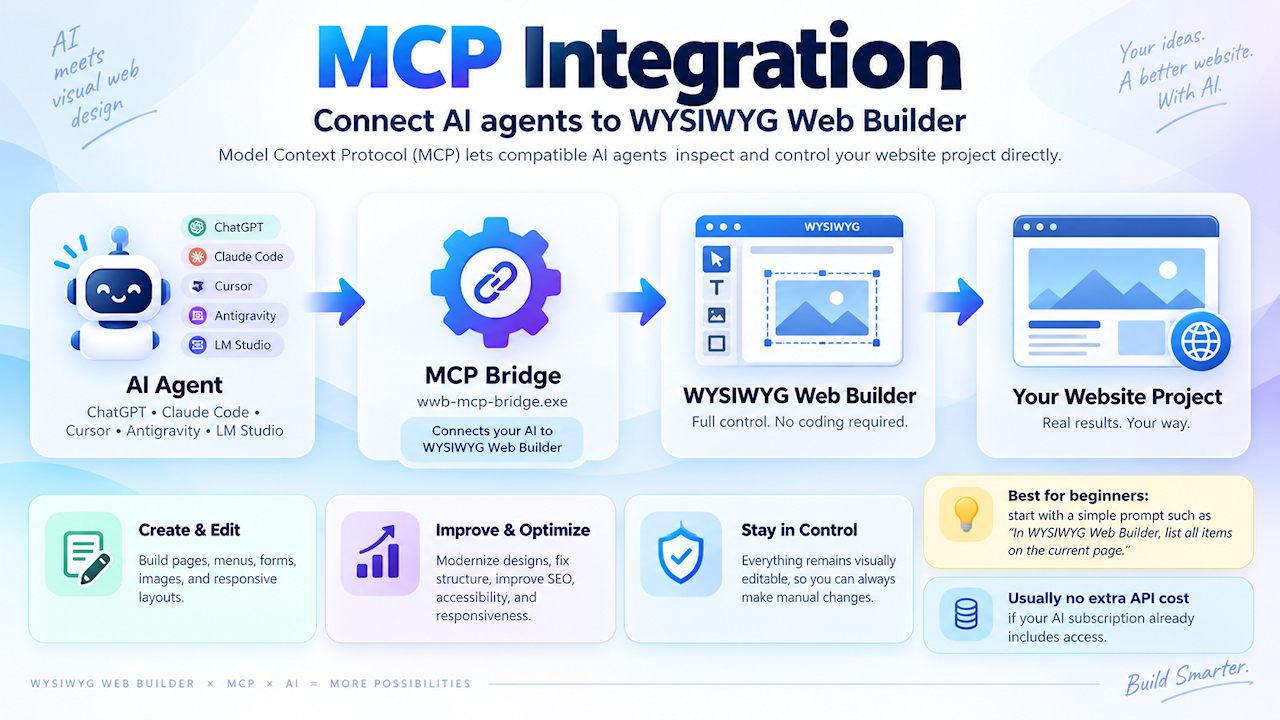
Unlike some built-in AI functionality that relies on paid APIs, using MCP does not necessarily involve additional costs.
If you already have a subscription to one of the supported AI platforms, you can often use its MCP capabilities within the limits of your existing plan, without paying separately for API usage. Free accounts may also work, but they typically include fewer credits or stricter usage limits.
Another option is to use a local AI tool such as LM Studio. Local AI does not require an online subscription or API credits, but it does require a sufficiently powerful computer, especially when running larger or more capable AI models.
The exact usage limits, costs, and hardware requirements depend on the AI platform, subscription plan, and model you use.
What can you do with MCP?
- Create complete websites with pages, navigation, forms, images, and responsive layouts.
- Clone or recreate a website based on screenshots or via an URL.
- Create new pages based on existing content, styles, or designs.
- Edit, extend, modernize, and optimize existing websites while reusing their content and images.
- Convert fixed layouts to flexible layouts, or flexible layouts to fixed positioning.
- Add and configure responsive breakpoints and create layouts optimized for desktop, tablet, and mobile devices.
- Build advanced layouts using grids, flex containers, cards, sections, overlaps, and animations.
- Give page objects clear, meaningful, and consistent IDs.
- Apply project styles and improve visual consistency throughout a website.
- Give existing websites a facelift using modern web-design principles.
- Add and configure menus, galleries, slideshows, forms, ecommerce features, and protected pages.
- Build advanced forms and generate custom logic based on fields and other content already present on the page.
- Configure validation, conditions, events, and calculations for form elements.
- Review pages for common SEO and accessibility issues.
- Generate page titles, descriptions, canonical URLs, Open Graph metadata, and meaningful image alternative text.
- Add custom HTML, CSS, and JavaScript where needed.
- Analyze generated HTML, CSS, and JavaScript for diagnostic purposes.
- Detect conflicting settings or potentially incorrect configurations.
- Suggest improvements to layout, usability, accessibility, responsiveness, and visual design.
- Discover useful WYSIWYG Web Builder features and settings that may otherwise be difficult to find.
- Experiment with new layouts and visual ideas simply by describing what you want.
Because the AI agent understands the structure of the WYSIWYG Web Builder project, not just its generated output, it can make informed changes at the same level you would when editing the project manually. It can also act as a creative partner, helping you explore possibilities beyond what you might have designed or imagined on your own.
And best of all, you still have full visual control over the layout. You can continue to make manual changes at any time, just as you always could!
Some models can also generate or modify images automatically.
ChatGPT
More advanced ChatGPT models, such as GPT-5.6 Sol and newer models, are well suited for creating and modifying complex websites. They can reason about larger page structures, make more sophisticated design decisions, and generate creative layouts.
When image generation is available, ChatGPT can also create images automatically as part of the website-building process.
Google Antigravity
More advanced Gemini models available in Google Antigravity, such as Gemini 3.8 Flash and later models, are well suited for creating and modifying complex websites. Google's Flash models can be a particularly good choice when you want a balance between quality and cost. They can produce very good results while typically using fewer credits than larger or more advanced models. Antigravity can also generate images automatically for use in the website.
Enable MCP in WYSIWYG Web Builder
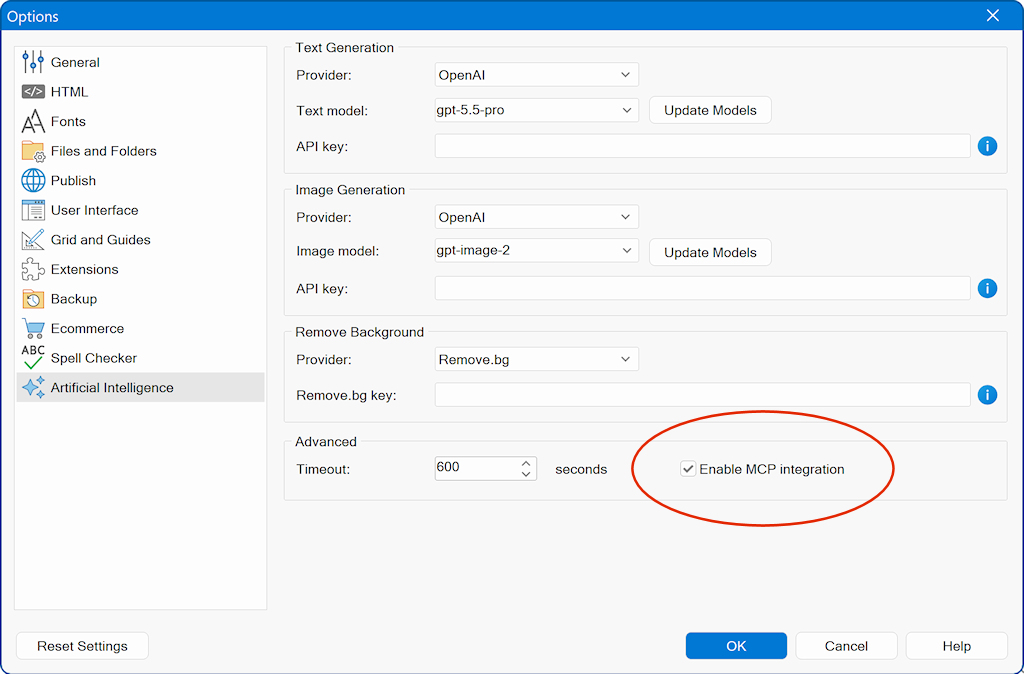
To enable it, go to Tools -> Options -> Artificial Intelligence and select Enable MCP integration.
The AI agent communicates with WYSIWYG Web Builder through the wwb-mcp-bridge.exe MCP bridge. The bridge gives the agent controlled access to WYSIWYG Web Builder's MCP tools, allowing it to inspect and modify the website project currently open in WYSIWYG Web Builder.
In a typical local setup:
AI Agent → MCP Bridge → WYSIWYG Web Builder → Your Project
You continue to work with the project normally in WYSIWYG Web Builder while the AI agent can inspect or modify it through MCP.
AI Agents
Although it is technically possible for an online AI agent to connect to WYSIWYG Web Builder running on your computer, this approach is generally not recommended. It may introduce security risks and usually requires additional network configuration, which can be difficult to set up correctly.
A much easier and safer approach is to run the AI agent locally on the same computer as WYSIWYG Web Builder. Many AI platforms provide desktop or command-line tools that can be installed locally.
Examples include:
Installing these tools is beyond the scope of this tutorial, but in most cases installation is straightforward and only requires following the on-screen instructions provided by the platform.
Configure the AI Agent
Update: at the time of writing this option is only avalable for paid ChatGPT accounts.
This may change in future updates of the ChatGPT tool. This is unrelated to WWB.
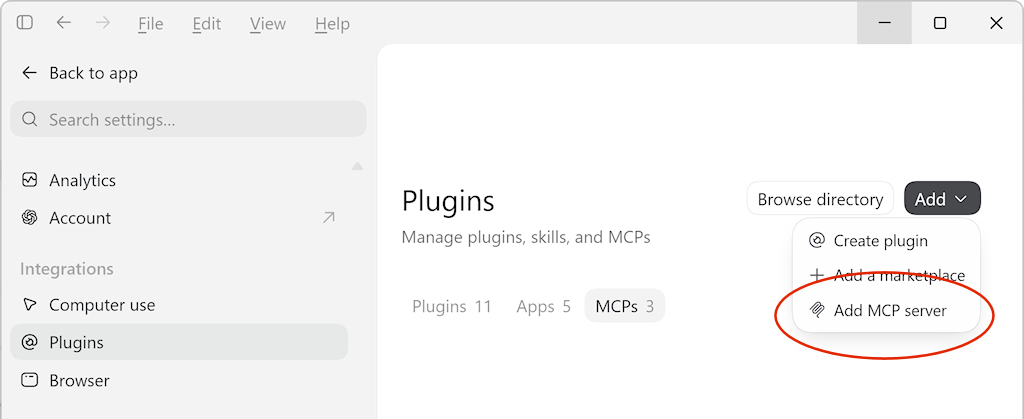
In ChatGPT, go to:
Settings -> Integrations -> Plugins -> Add -> Add MCP server
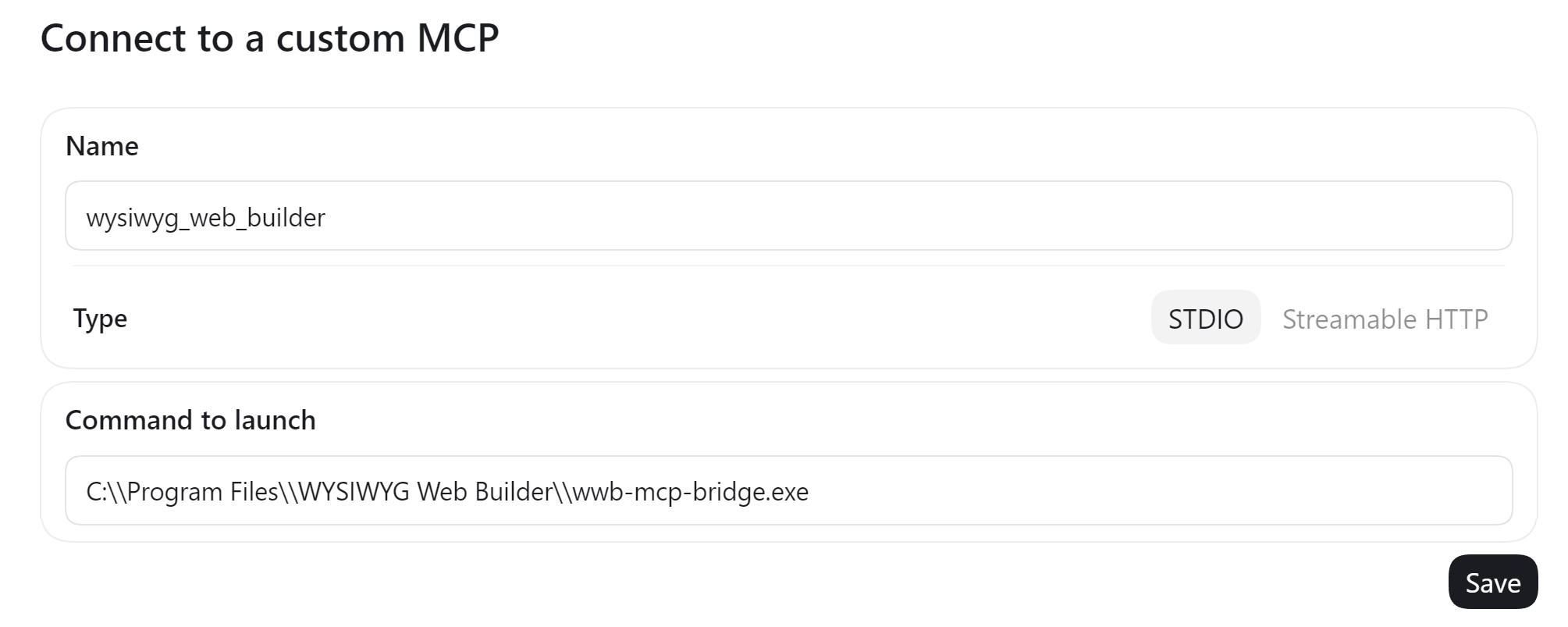
Then configure the MCP server as follows:
- Name: wysiwyg_web_builder
- Type: STDIO
- Command to launch: Browse to the folder where WYSIWYG Web Builder is installed and select wwb-mcp-bridge.exe.
For a standard installation, the full path will usually look something like:
C:\Program Files\WYSIWYG Web Builder\wwb-mcp-bridge.exe
If WYSIWYG Web Builder is installed in a different folder, use that location instead.
Click Save to add the MCP server.
Once saved, ChatGPT can launch the MCP bridge whenever it needs to communicate with WYSIWYG Web Builder.
Note: WYSIWYG Web Builder must have MCP integration enabled, as described in the previous section.
Customizations -> Installed MCP Servers -> Open MCP Config
Open mcp_config.json with a text editor.
Add this to the configuration (make sure the path is valid!):
{
"mcpServers": {
"wysiwyg-web-builder": {
"command": "C:\\Program Files\\WYSIWYG Web Builder\\wwb-mcp-bridge.exe",
"cwd": "C:\\Program Files\\WYSIWYG Web Builder"
}
}
}
Claude Code uses the same MCP configuration syntax. Its configuration file is typically located at:
C:\Users\username\.claude\.mcp.json
With many AI agents, you can also ask the agent to help configure the MCP connection for you.
For example, start a new chat and enter:
"Can you help me set up MCP for WYSIWYG Web Builder locally?"
The agent can then guide you through the required configuration steps and, depending on the tool, may be able to create or update the MCP configuration automatically.
MCP Plugin for Google Antigravity / Claude Code / Cursor
Download the zip file here:
https://www.wysiwygwebbuilder.com/support/antigravity-plugin.zip
Install the plugin folder
Extract the zip file and copy the `wysiwyg-web-builder` folder into:
%USERPROFILE%\.gemini\config\plugins\
Tip: You can paste `%USERPROFILE%\.gemini\config\plugins\` directly into the File Explorer address bar and press Enter.
Test the MCP Connection
For example, open a new chat and enter:
In WYSIWYG Web Builder, list all items on the current page.
If the connection is working correctly, the AI agent should use the MCP integration to inspect the page that is currently open in WYSIWYG Web Builder and return a list of its objects.
Once this works, you can try a simple change:
Change the text of Heading1 to "Welcome to my website".
You should see the change appear directly in WYSIWYG Web Builder.
This is a simple way to verify that the agent can successfully communicate with WYSIWYG Web Builder before trying more advanced commands.
In your first prompt, it is usually a good idea to mention **WYSIWYG Web Builder** explicitly. This helps the AI agent understand that you want it to use the WYSIWYG Web Builder MCP connection.
In most cases, you do not need to mention WYSIWYG Web Builder again in follow-up prompts, because the agent already understands the context of the conversation.
Troubleshooting
If the AI agent cannot communicate with WYSIWYG Web Builder:
- Make sure Enable MCP integration is enabled in WYSIWYG Web Builder.
- Make sure the MCP command points to the correct wwb-mcp-bridge.exe.
- Make sure WYSIWYG Web Builder is running and the project you want to work with is open.
- Restart the AI agent after changing its MCP configuration.
- Start a new chat and explicitly mention WYSIWYG Web Builder in the first prompt.
Example prompts
Before asking an AI agent to make major or experimental changes, save your project or create a backup. This makes it easy to return to the previous version if you do not like the result.
Demonstrates how MCP can plan, generate, and organize an entire site architecture from a single creative brief.
Demonstrates styling, layout transformations, and CSS effects on navigation objects.
Demonstrates how MCP can inspect the existing page hierarchy and fix contrast, fonts, or placeholder texts across multiple components or pages.
Demonstrates the configuration of complex built-in Web Builder widgets.
Demonstrates e-commerce functionality, product card items, multi-tier pricing, and shopping cart setups.
Demonstrates inspecting existing objects and creating custom UI-to-cart bridges.
You do not need to describe everything in one large prompt. You can work iteratively:
"Make it more colorful."
"Add more spacing around the text."
"Add a call-to-action button underneath the heading."
"I don't like the colors. Try something warmer."
"Now optimize the layout for mobile devices."
Here are a bunch of other prompts that may be useful:
"Give this website a completely new visual direction. Keep the existing text and images, but surprise me with a modern, playful layout that I probably would not have designed myself."
"Set the maximum width of all layout grids to 1170"
"Suggest a fun interactive custom script to make the page more interactive."
"Rename all IDs on the current page. Give them meaningful names"
"Add hover effects to all buttons using built-in transitions."
"The current layout is using absolute layout. Add a 480 breakpoint for mobile devices and optimize the layout for the smaller screen size."
"The current layout is using absolute layout. Redesign the page to use layout grids, keep all existing content."
"List all available form controls in WYSIWYG Web Builder and tell me what they are useful for."
"Add a SEO-friendly title and description to all images based on their content"
"Why does this page not look good on mobile?"
"What would you improve about this layout?"
"What WYSIWYG Web Builder feature would be best for creating this design?"
"What would a professional web designer change here?"
"Surprise me with one creative improvement to this page."
"Make the design more consistent across all pages."
"Improve the typography on this page."
"Make this page more visually interesting."
"Give this page a more professional look."
"Make the layout cleaner and less cluttered."
"Make this page feel more premium."
"Add subtle animations where appropriate."
"Improve the visual hierarchy of this page."
"Make all cards use a consistent style."
"Check all links on this page."
"Check all pages for missing titles or descriptions."
"Add a testimonials section to this page."
"Add a sticky header to this page."
"Turn this content into a card-based layout."
"Suggest a better layout for this content."
"Which WYSIWYG Web Builder features am I not using yet?"
"Show me some features that could improve this website."
"Add validation to all required form fields."
Known Limitations
The MCP currently does not have full access to all properties and functionalty of WYSIWYG Web Builder. We will continue to extend and improve the integration based on user feedback.
Current limitations
- Rich text formatting within a single text object is currently not supported through MCP.
This means that one text object can only use a single font style and size. For example, you cannot mix regular and bold text, or use different font sizes within the same text object. When different text styles are required, MCP will create separate text objects for each style. - extensions are not support yet
- some legacy features are not exposed to MCP. For example, layers, java, flash
Security
- MCP cannot directly preview or publish a website. However, it can inspect the generated HTML and use its own tools to preview and analyze the result.
- MCP cannot create new projects or save project files. This is intentional, to prevent the AI from accidentally overwriting existing files or projects.
- MCP cannot delete pages.
- MCP cannot access applications settings (Tools -> Options)
Where to go from here
There is no special command syntax to learn. Simply describe what you want in normal language, review the result in WYSIWYG Web Builder, and continue refining it until you are happy with the result.
And because everything remains editable in WYSIWYG Web Builder, you are always free to make your own visual adjustments at any time.