Use LM Studio for AI Text Generation
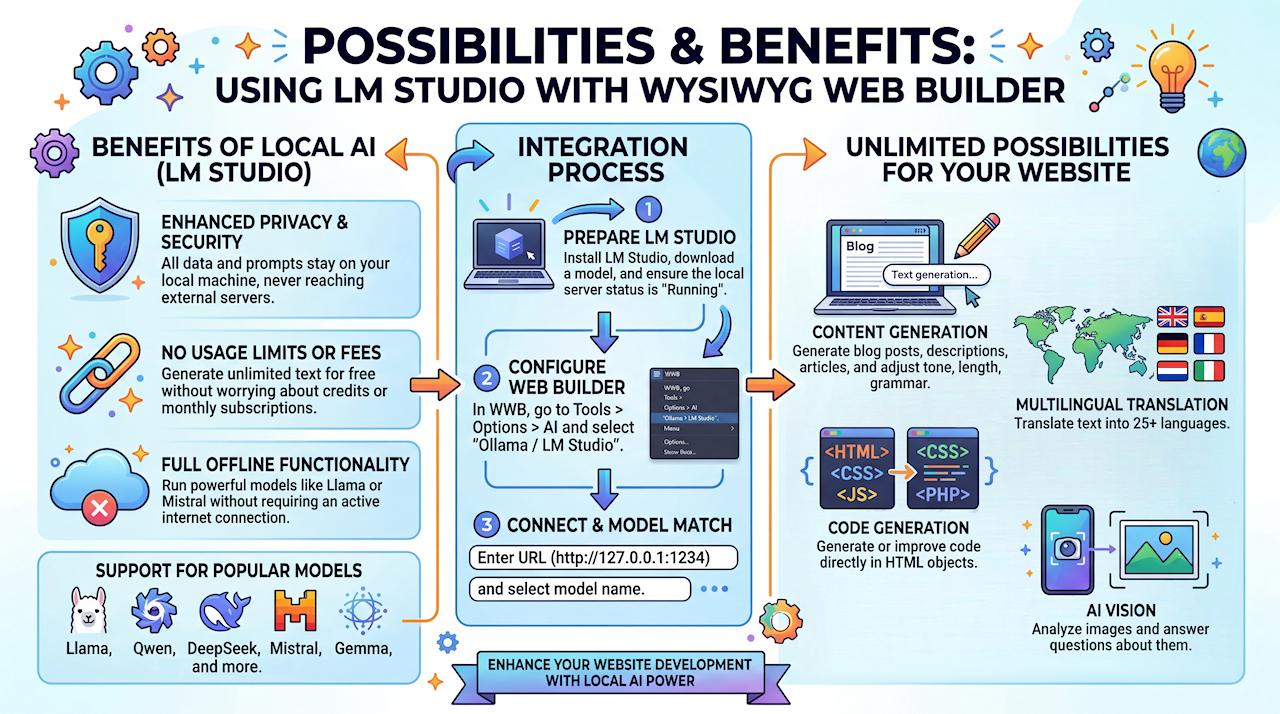
WYSIWYG Web Builder integrates with LM Studio, allowing you to generate, translate and improve text using AI directly on your local computer. Most OpenAI-related text features are compatible with LM Studio.
LM Studio (https://lmstudio.ai/) is a platform designed to enable local installation and use of AI language models laptops or desktops. Unlike cloud-based AI services that require internet access to connect to servers, LM Studio focuses on providing private, offline, and secure access to AI capabilities. It supports interactions with large language models directly from the user's machine, which can be especially useful for maintaining data privacy and reducing dependency on remote servers.
LM Studio (https://lmstudio.ai/) is a platform designed to enable local installation and use of AI language models laptops or desktops. Unlike cloud-based AI services that require internet access to connect to servers, LM Studio focuses on providing private, offline, and secure access to AI capabilities. It supports interactions with large language models directly from the user's machine, which can be especially useful for maintaining data privacy and reducing dependency on remote servers.
LM Studio Features
• Supports popular language models like Llama, Qwen, DeepSeek, Mistral, Gemma, and other large language models.
• Free: LM Studio is free, with no usage fees or limitations.
• Offline Use: You can run it locally on your computer, so you don't need internet access and avoid server downtimes or restrictions.
• Privacy: Since everything runs on your machine, there's no need to upload data or prompts to external servers, protecting your privacy.
• No Usage Limits: LM Studio doesn’t limit the amount of text you can generate, unlike online services that often cap usage based on credits or subscriptions.
• A fast computer/GPU is required to run LM Studio effectively!
• Free: LM Studio is free, with no usage fees or limitations.
• Offline Use: You can run it locally on your computer, so you don't need internet access and avoid server downtimes or restrictions.
• Privacy: Since everything runs on your machine, there's no need to upload data or prompts to external servers, protecting your privacy.
• No Usage Limits: LM Studio doesn’t limit the amount of text you can generate, unlike online services that often cap usage based on credits or subscriptions.
• A fast computer/GPU is required to run LM Studio effectively!
Installing LM Studio is designed to be straightforward, making it accessible even to users with minimal technical expertise.
However, for advanced configurations or customizations, some technical knowledge may be required.
However, for advanced configurations or customizations, some technical knowledge may be required.
Note
While WYSIWYG Web Builder provides integration with LM studio, we do not offer support for the installation or configuration of LM Studio.
If you choose to use this feature, we expect that you have the requisite knowledge and skills to manage the setup yourself.
While WYSIWYG Web Builder provides integration with LM studio, we do not offer support for the installation or configuration of LM Studio.
If you choose to use this feature, we expect that you have the requisite knowledge and skills to manage the setup yourself.
Installing LM Studio
You can download LM Studio from the official website:
https://lmstudio.ai/
Run the installer and follow the on-screen instructions.
Once installed, the software can be started via the 'LM Studio' icon on your desktop.
https://lmstudio.ai/
Run the installer and follow the on-screen instructions.
Once installed, the software can be started via the 'LM Studio' icon on your desktop.
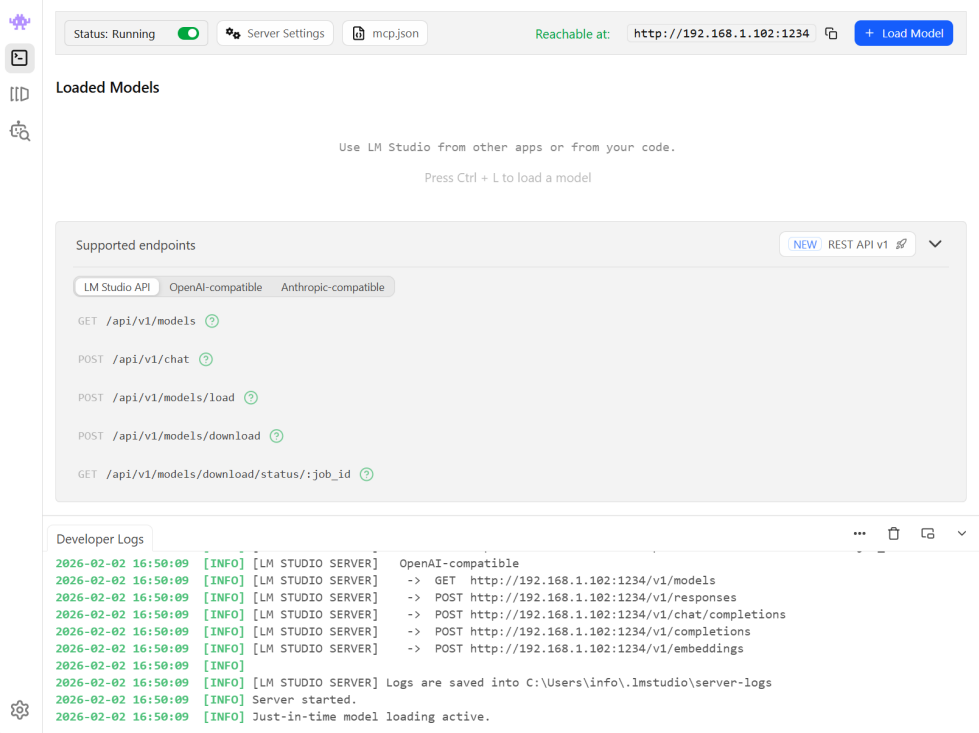
Make sure the LM Studio server status is set to Running. Note the IP address and port number shown, these are required to tell WYSIWYG Web Builder where to connect to the server.
Configure Models
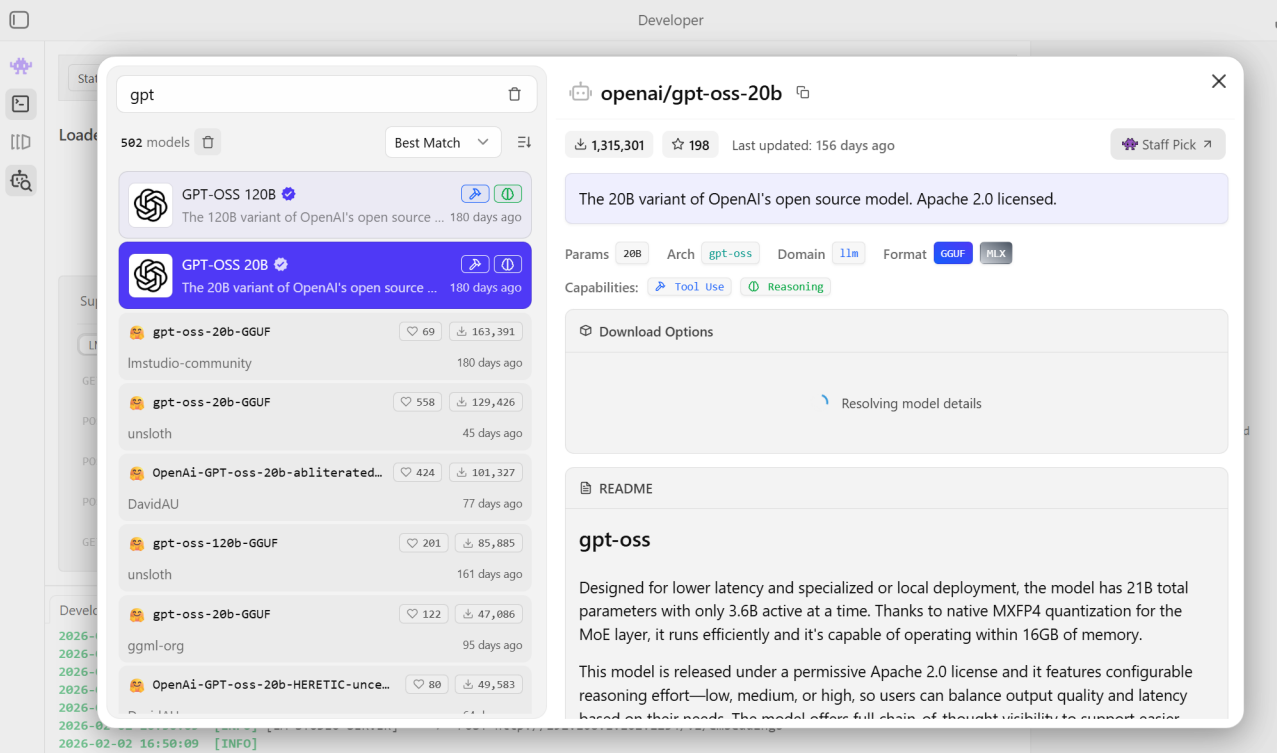
Once the software is installed, you may need to download or configure specific language models.
LM Studio provides built-in model management, making it easy to choose and install models directly from the application.
Basic instructions can be found here:
https://lmstudio.ai/docs/app/basics/download-model
LM Studio provides built-in model management, making it easy to choose and install models directly from the application.
Basic instructions can be found here:
https://lmstudio.ai/docs/app/basics/download-model
Use LM Studio with WYSIWYG Web Builder
In WYSIWYG Web Builder, navigate to Tools -> Options -> Artificial Intelligence, and select Ollama / LM Studio as the provider for text generation.
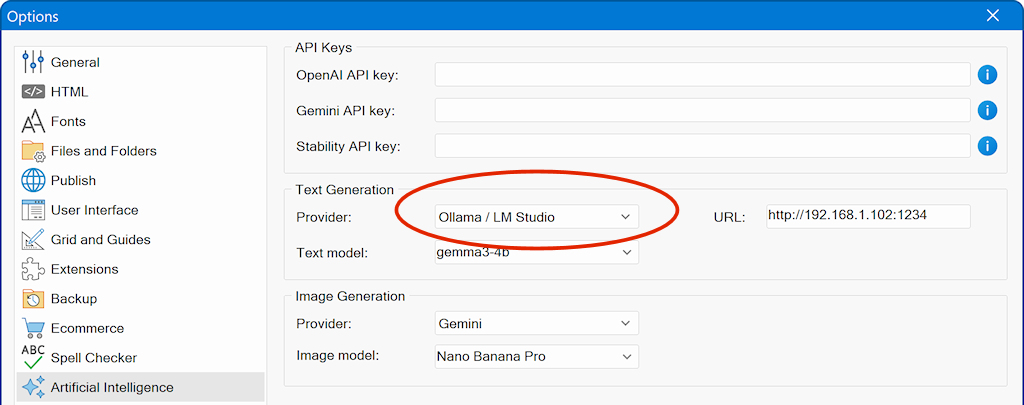
The URL property specifies the IP address and port for LM Studio.
The default setting is http://127.0.0.1:1234, but you can also configure it to connect to another computer on your network if needed.
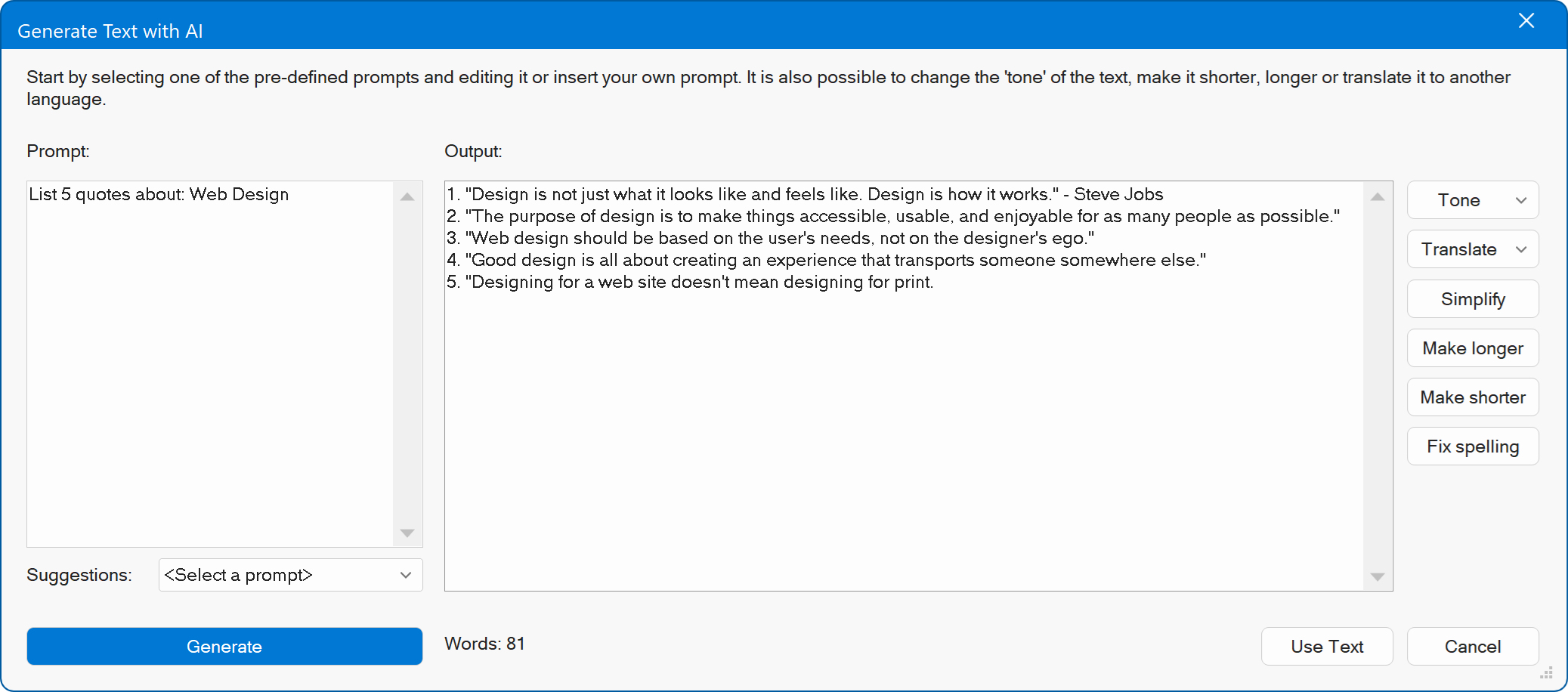
Once you select 'Ollama / LM Studio' as the provider, the software will use it when you use any of the built-in AI Text tools.
The default setting is http://127.0.0.1:1234, but you can also configure it to connect to another computer on your network if needed.
Once you select 'Ollama / LM Studio' as the provider, the software will use it when you use any of the built-in AI Text tools.
Note
The first time you use LM Studio, it may take a bit longer to respond because the model needs to load into your computer's memory.
Once the model is loaded, it will respond, and subsequent responses will be faster since the model remains in memory.
The first time you use LM Studio, it may take a bit longer to respond because the model needs to load into your computer's memory.
Once the model is loaded, it will respond, and subsequent responses will be faster since the model remains in memory.
Text Models
The 'Text Model' property specifies the model used for generating text.
By default, WYSIWYG Web Builder provides a list of commonly used models.
But, you can also manually enter the name of any model in the 'Text Model' input field.
Important: Before selecting a model, ensure that the corresponding model is installed in LM Studio!
By default, WYSIWYG Web Builder provides a list of commonly used models.
But, you can also manually enter the name of any model in the 'Text Model' input field.
Important: Before selecting a model, ensure that the corresponding model is installed in LM Studio!