Create a new website using AI (text-to-website or image-to-website)
There are several ways to start a new website with WYSIYWG Web Builder:
- start with an empty workspace and add all elements manually
- create a new website based on a template
- create a new website using the website wizard
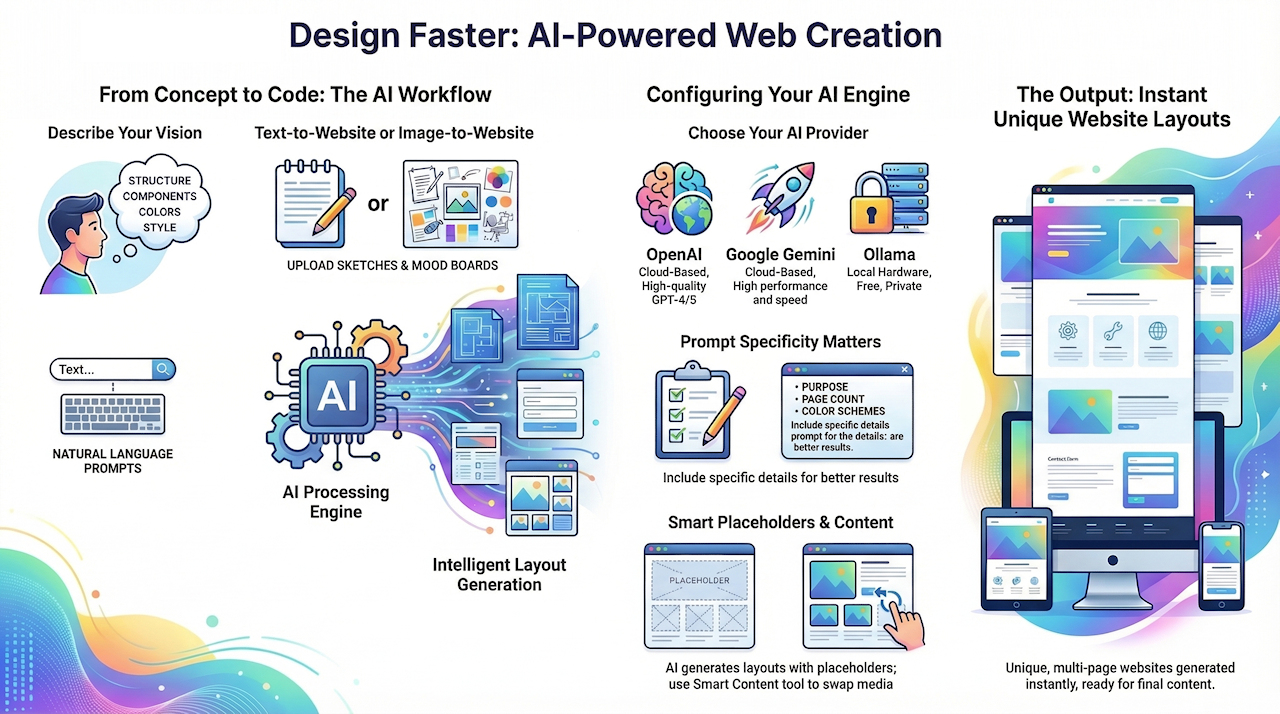
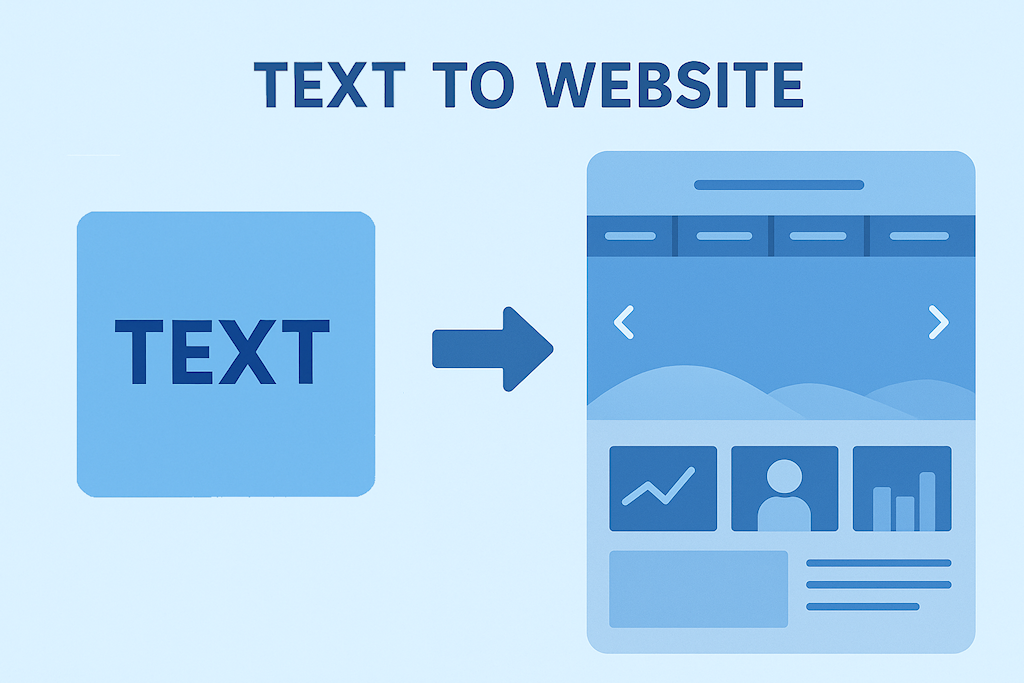
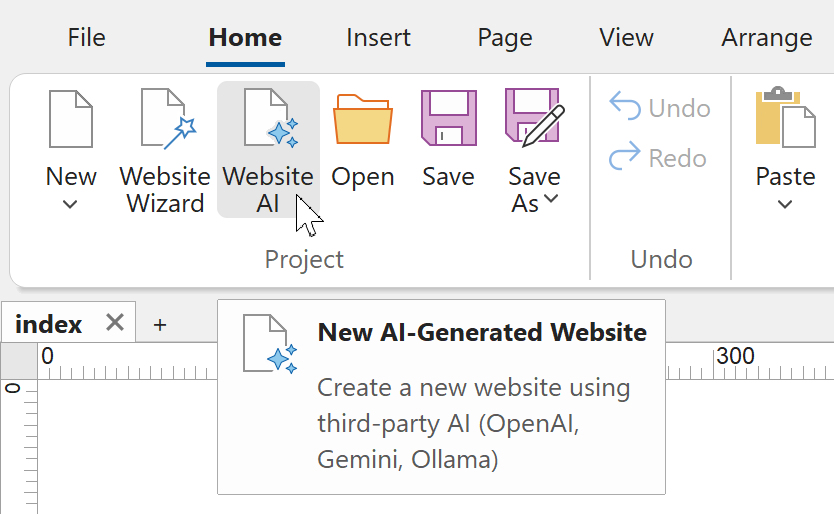
The latest enhancement introduces the ability to create complete websites using AI through third-party APIs such as OpenAI, Google Gemini, or local Ollama / LM Studio models. With this feature, you can design full layouts using text-based instructions only, eliminating the need for manual dragging, coding, or template editing.
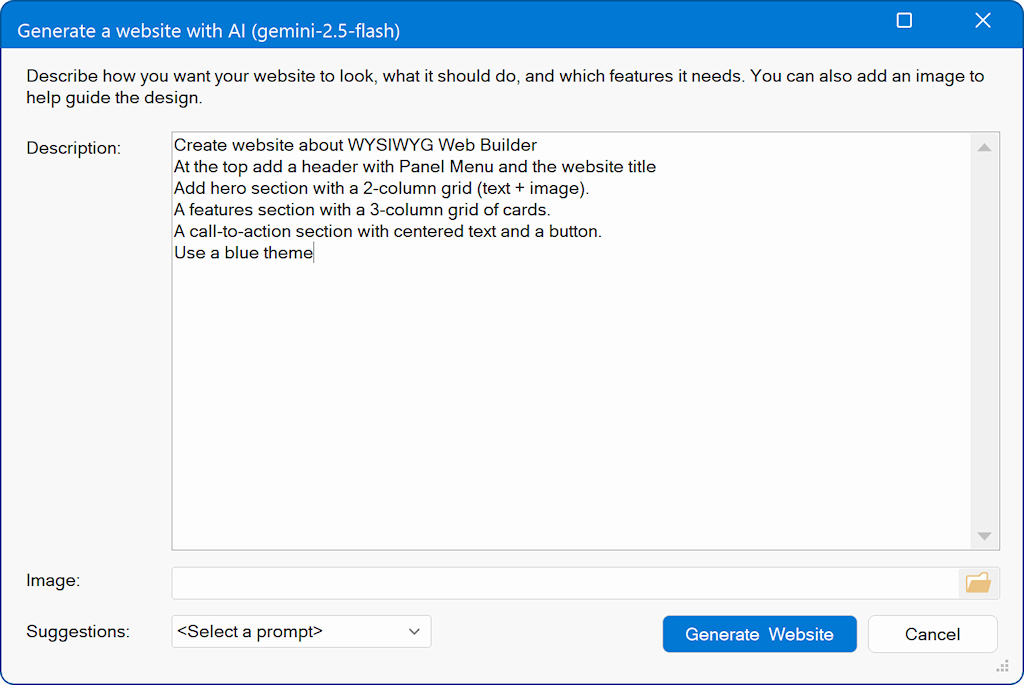
You can describe the structure, components, colors, and style of the website in natural language. Optionally, you may also upload an image—such as a sketch, mood board, or reference layout—to guide the visual direction.
Once your request is submitted, the software sends your description to the selected AI model. The AI then returns detailed layout instructions, which the system uses to automatically generate a unique, fully structured website based on your specifications.
Websites can include one or multiple pages, and the AI supports a wide range of elements, including:
- start with an empty workspace and add all elements manually
- create a new website based on a template
- create a new website using the website wizard
The latest enhancement introduces the ability to create complete websites using AI through third-party APIs such as OpenAI, Google Gemini, or local Ollama / LM Studio models. With this feature, you can design full layouts using text-based instructions only, eliminating the need for manual dragging, coding, or template editing.
You can describe the structure, components, colors, and style of the website in natural language. Optionally, you may also upload an image—such as a sketch, mood board, or reference layout—to guide the visual direction.
Once your request is submitted, the software sends your description to the selected AI model. The AI then returns detailed layout instructions, which the system uses to automatically generate a unique, fully structured website based on your specifications.
Websites can include one or multiple pages, and the AI supports a wide range of elements, including:
- Text blocks and headings
- Image placeholders
- Cards and content sections
- Buttons and interactive elements
- Navigation menus (single- or multi-level)
- Forms with customizable fields
This tool allows designers, developers, or beginners to prototype complete websites quickly and creatively using simple, natural descriptions.
Note
The generated layout currently includes image placeholders only. Creating real images through AI would significantly increase processing time and consume additional AI credits, and in most cases, the generated images wouldn’t match the visuals you plan to use in your final design.
However, you can easily replace these placeholders at any time. Simply use the Smart Content tool to browse and insert stock photos, illustrations, or other media that better fit your project. This approach keeps the initial layout fast and affordable while giving you full control over the final visuals.
The generated layout currently includes image placeholders only. Creating real images through AI would significantly increase processing time and consume additional AI credits, and in most cases, the generated images wouldn’t match the visuals you plan to use in your final design.
However, you can easily replace these placeholders at any time. Simply use the Smart Content tool to browse and insert stock photos, illustrations, or other media that better fit your project. This approach keeps the initial layout fast and affordable while giving you full control over the final visuals.
Configure AI
WYSIWYG Web Builder uses third-party AI providers to power its AI functionality. This allows the software to transform natural-language descriptions into full website layouts.
You can choose from several AI engines, each with different benefits:
• OpenAI – Paid, cloud-based, high-quality models
• Google Gemini – Paid, cloud-based, fast and powerful
• Ollama or LM Studio – Free, runs locally on your own computer, no cloud required
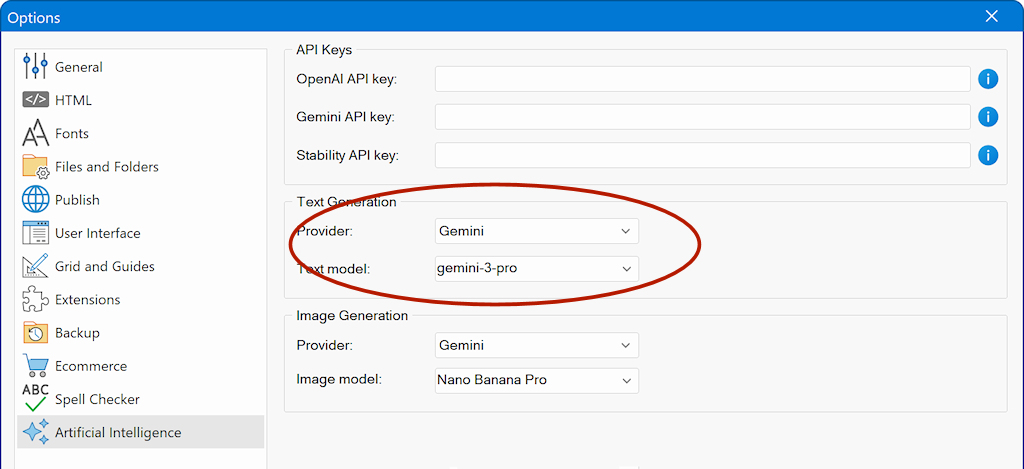
You can select and configure your preferred AI provider by navigating to:
Tools → Options → Artificial Intelligence
This makes it easy to switch between providers or optimize performance, cost, and privacy based on your needs.
You can choose from several AI engines, each with different benefits:
• OpenAI – Paid, cloud-based, high-quality models
• Google Gemini – Paid, cloud-based, fast and powerful
• Ollama or LM Studio – Free, runs locally on your own computer, no cloud required
You can select and configure your preferred AI provider by navigating to:
Tools → Options → Artificial Intelligence
This makes it easy to switch between providers or optimize performance, cost, and privacy based on your needs.
Notes About Local AI Usage
When using local AI, WYSIWYG Web Builder relies on Ollama or LM Studio, which support a wide range of open-source AI models such as LLaMA (Meta), DeepSeek, GPT-OSS (OpenAI), Qwen, and others.
In general, local AI models tend to be slower, less consistent, and less creative than cloud-based services like OpenAI or Google Gemini. This is mainly because local models are usually much smaller and must run on your own hardware.
That said, open-source AI is improving at a very rapid pace, with new and better models being released frequently. As a result, output quality continues to improve over time.
During testing, we found that gpt-oss:20b (OpenAI’s open-weight model) produced particularly good and consistent results. It offers a strong balance between output quality and performance, making it a good choice for local AI usage. More information.
Larger local models typically produce better results, but they also require more processing power and take longer to respond. Depending on the model and your system, generating a website may take a minute or more—which is still significantly faster than creating a layout manually.
It’s also important to note that different models respond differently to prompts. When trying a new model, you may need to experiment with a few prompt variations to achieve the desired result.
Some AI models (including gpt-oss) do not support vision capabilities, which means they cannot process reference images. When using these models, image-based input will be ignored. Models that do support vision are usually identified by “-vl” in the model name. If you plan to use a reference image, make sure to select a vision-enabled model. For example: qwen3-vl
We will continue to update this tutorial with tips and best practices to help you get the best possible results, based on ongoing improvements and user feedback.
When using local AI, WYSIWYG Web Builder relies on Ollama or LM Studio, which support a wide range of open-source AI models such as LLaMA (Meta), DeepSeek, GPT-OSS (OpenAI), Qwen, and others.
In general, local AI models tend to be slower, less consistent, and less creative than cloud-based services like OpenAI or Google Gemini. This is mainly because local models are usually much smaller and must run on your own hardware.
That said, open-source AI is improving at a very rapid pace, with new and better models being released frequently. As a result, output quality continues to improve over time.
During testing, we found that gpt-oss:20b (OpenAI’s open-weight model) produced particularly good and consistent results. It offers a strong balance between output quality and performance, making it a good choice for local AI usage. More information.
Larger local models typically produce better results, but they also require more processing power and take longer to respond. Depending on the model and your system, generating a website may take a minute or more—which is still significantly faster than creating a layout manually.
It’s also important to note that different models respond differently to prompts. When trying a new model, you may need to experiment with a few prompt variations to achieve the desired result.
Some AI models (including gpt-oss) do not support vision capabilities, which means they cannot process reference images. When using these models, image-based input will be ignored. Models that do support vision are usually identified by “-vl” in the model name. If you plan to use a reference image, make sure to select a vision-enabled model. For example: qwen3-vl
We will continue to update this tutorial with tips and best practices to help you get the best possible results, based on ongoing improvements and user feedback.
Description
In the description input field, you can explain how you want your website to look, what it should do, and which features it needs. The more specific and detailed your description is, the better the AI can translate your ideas into a meaningful layout.
If the input is too short or vague—for example, simply writing “Create a website about cats”—the AI may generate only a very basic page with minimal text and generic image placeholders. To get a richer, more accurate result, be sure to include details such as:
The more guidance you provide, the closer the generated site will be to your desired vision.
If the input is too short or vague—for example, simply writing “Create a website about cats”—the AI may generate only a very basic page with minimal text and generic image placeholders. To get a richer, more accurate result, be sure to include details such as:
The more guidance you provide, the closer the generated site will be to your desired vision.
- The purpose of the website
- The number of pages
- The type of content each page should include
- Preferred colors, layout style, or visual tone
- Specific components (e.g., hero section, gallery, form, navigation menu, product grid)
- You can even ask the AI to generate custom code snippets that extend your website with features not supported by WYSIWYG Web Builder out of the box.
The more guidance you provide, the closer the generated site will be to your desired vision.
Examples
1. Very Simple Prompt
“Create a one-page website about my bakery with a short welcome text and a picture placeholder.”
2. Simple / Medium Prompt
“Build a small website for a local dog-walking service with a home page, an ‘about me’ section, and a contact form. Use friendly colors like light blue and green and include icons for phone and email.”
3. Medium Prompt
“Design a two-page website for a fitness coach. The home page should have a hero section, a list of services, and a testimonials section. The second page should contain a booking form. Use bold colors like black, red, and white.”
4. Advanced Prompt
“Create a modern portfolio site for a freelance photographer. Include a homepage with a large hero banner, a gallery section with 12 placeholder images, an ‘about’ page, and a contact page with a form. Use minimalist colors (white, dark gray, gold) and a clean grid-based layout.”
5. Highly Detailed / Complex Prompt
“Generate a multi-page website for a tech startup. Include pages for Home, Product, Pricing, Blog, and Contact. The home page needs a hero section with a short pitch, three feature cards, a comparison table, and a call-to-action. The Product page should include a step-by-step diagram and FAQs. The Blog page should have a list of article previews. Use a professional color scheme (navy, white, cyan). Add icons for features and a detailed contact form with fields for name, email, company, and message.”
“Create a one-page website about my bakery with a short welcome text and a picture placeholder.”
2. Simple / Medium Prompt
“Build a small website for a local dog-walking service with a home page, an ‘about me’ section, and a contact form. Use friendly colors like light blue and green and include icons for phone and email.”
3. Medium Prompt
“Design a two-page website for a fitness coach. The home page should have a hero section, a list of services, and a testimonials section. The second page should contain a booking form. Use bold colors like black, red, and white.”
4. Advanced Prompt
“Create a modern portfolio site for a freelance photographer. Include a homepage with a large hero banner, a gallery section with 12 placeholder images, an ‘about’ page, and a contact page with a form. Use minimalist colors (white, dark gray, gold) and a clean grid-based layout.”
5. Highly Detailed / Complex Prompt
“Generate a multi-page website for a tech startup. Include pages for Home, Product, Pricing, Blog, and Contact. The home page needs a hero section with a short pitch, three feature cards, a comparison table, and a call-to-action. The Product page should include a step-by-step diagram and FAQs. The Blog page should have a list of article previews. Use a professional color scheme (navy, white, cyan). Add icons for features and a detailed contact form with fields for name, email, company, and message.”
Custom Code Snippets
You can even ask the AI to generate custom code snippets that extend your website with features not supported by WYSIWYG Web Builder out of the box. This includes adding unique interactions, embedding third-party widgets, or creating small scripts to enhance functionality.
Simply describe what you want to achieve, and the AI can produce HTML, CSS, or JavaScript that you can insert directly into your project. This makes it possible to customize your site far beyond the standard tools—without needing to write the code yourself.
Simply describe what you want to achieve, and the AI can produce HTML, CSS, or JavaScript that you can insert directly into your project. This makes it possible to customize your site far beyond the standard tools—without needing to write the code yourself.
Warning
In some cases, the AI may generate code that conflicts with WYSIWYG Web Builder’s internally generated scripts or styles. For example, it might include references to external JavaScript libraries, embed inline styles that override your design, or add code that duplicates existing functionality.
To avoid unexpected behavior, always review any AI-generated code before publishing your website. Make sure the scripts, libraries, and styles are compatible with your project.
If you prefer the AI not to include external libraries or certain types of code, simply mention this in your prompt. For example: “Do not use external scripts or third-party libraries.” This helps ensure the generated code stays fully compatible with WWB.
In some cases, the AI may generate code that conflicts with WYSIWYG Web Builder’s internally generated scripts or styles. For example, it might include references to external JavaScript libraries, embed inline styles that override your design, or add code that duplicates existing functionality.
To avoid unexpected behavior, always review any AI-generated code before publishing your website. Make sure the scripts, libraries, and styles are compatible with your project.
If you prefer the AI not to include external libraries or certain types of code, simply mention this in your prompt. For example: “Do not use external scripts or third-party libraries.” This helps ensure the generated code stays fully compatible with WWB.
Image to Website
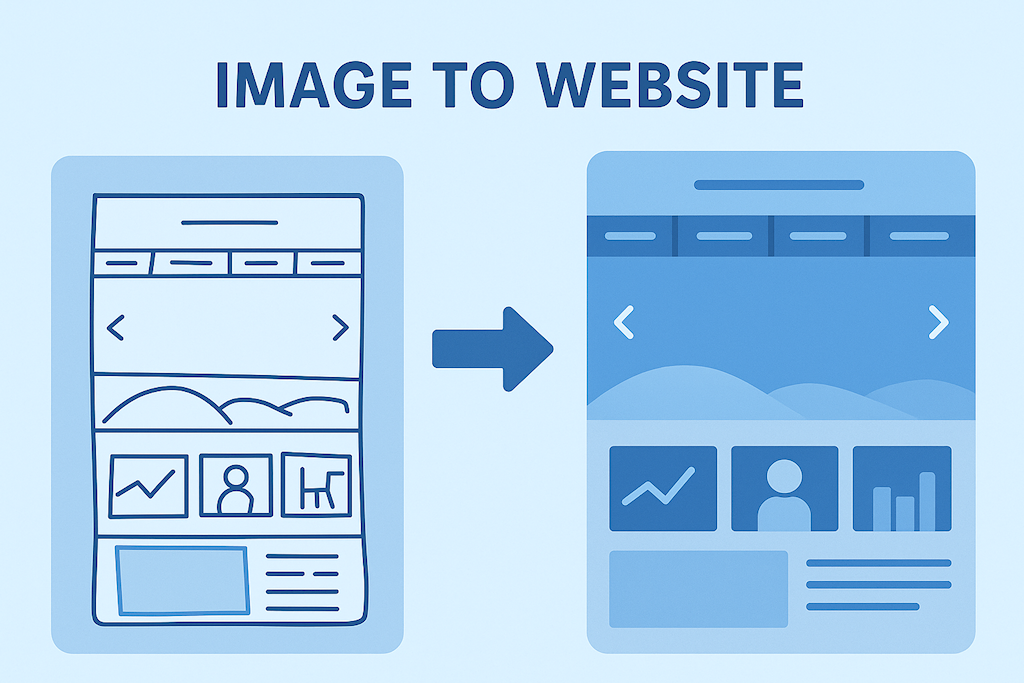
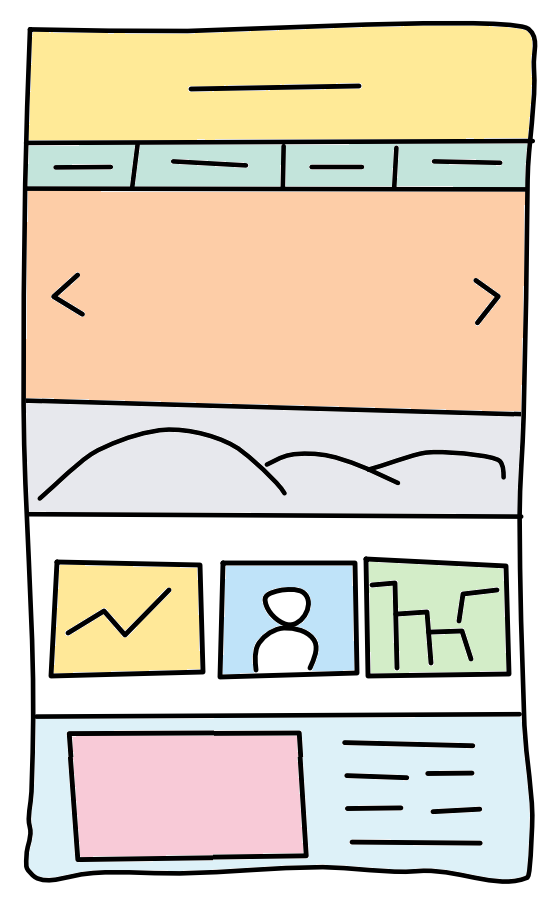
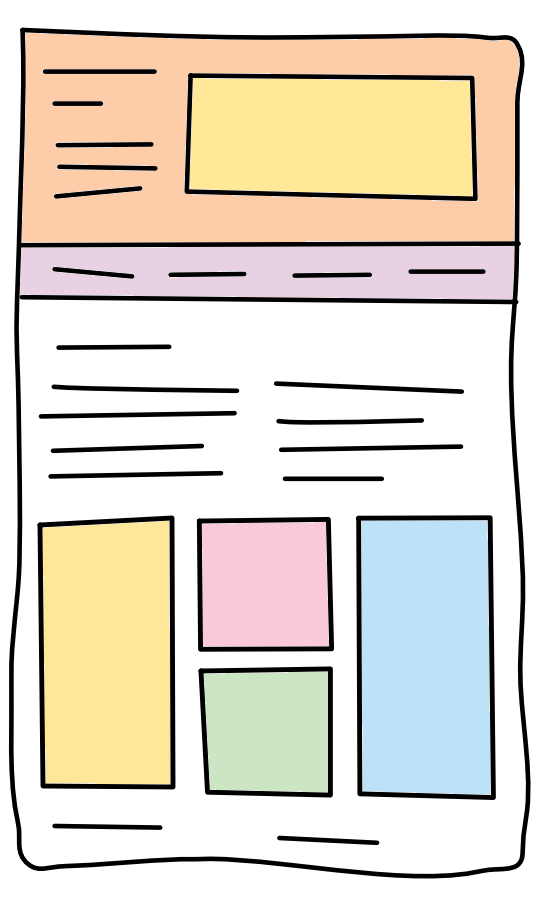
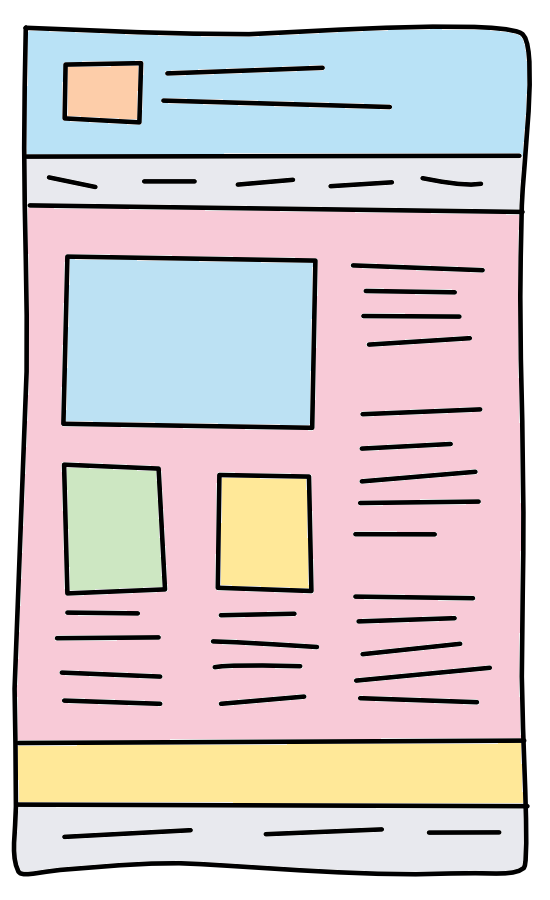
Optionally, you can upload an image, such as a hand-drawn sketch, wireframe, mood board, style reference, or screenshot of an existing website to guide the visual direction of your website. The AI will analyze the image and use it as inspiration for structure, spacing, color accents, or overall design style. This is especially useful if you already have a concept in mind or want the generated layout to follow a specific look and feel.
With advanced models like OpenAI GPT-5 and Google's gemini-3-pro, you can even clone the structure of an existing website if you provide a clear screenshot of the page!
Below are some examples. Click on the image to see the result.
The used prompt was:
"Create a website about WYSIWYG Web Builder inspired by the layout of the reference image using the same color scheme."
With advanced models like OpenAI GPT-5 and Google's gemini-3-pro, you can even clone the structure of an existing website if you provide a clear screenshot of the page!
Below are some examples. Click on the image to see the result.
The used prompt was:
"Create a website about WYSIWYG Web Builder inspired by the layout of the reference image using the same color scheme."
Add AI Content To Existing Layouts
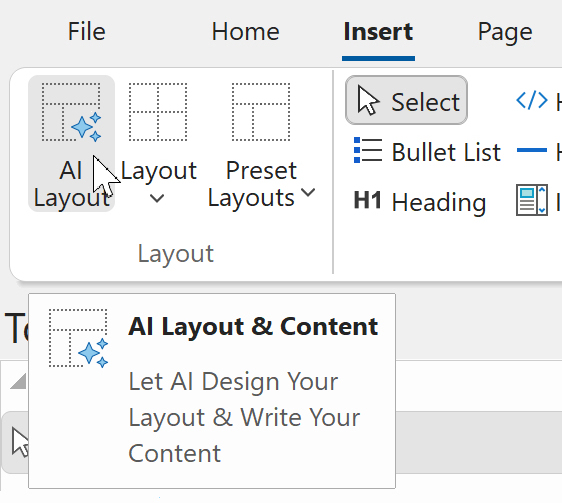
In addition to creating a complete website from scratch, you can also enhance existing pages using AI. Simply open any page and choose Insert → AI Layout from the menu. This allows you to generate new sections, components, or layout blocks and seamlessly insert them into the current design. It’s a quick way to expand your site with fresh content, such as hero sections, galleries, info blocks, or forms without rebuilding the entire page.
Example:
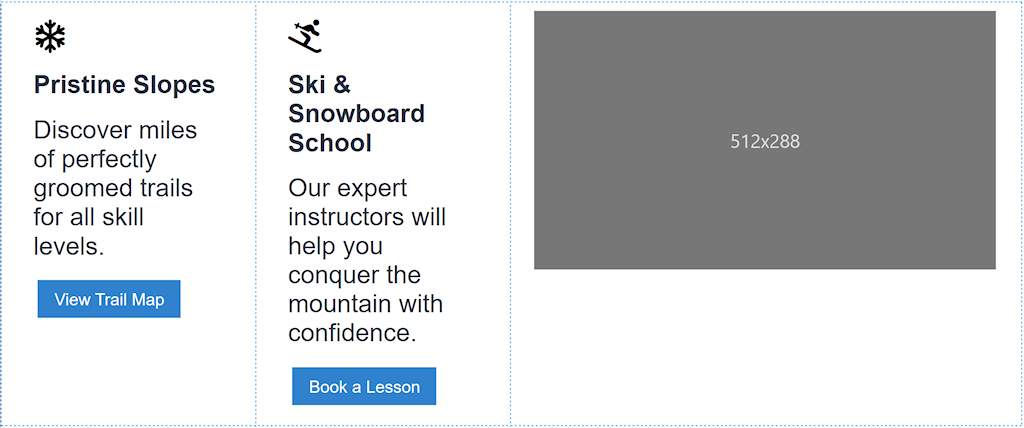
Add a layout grid with 3 columns: 25% 25%, 50%.
Add a card with text and button in the first 2 columns, and an 16:9 image in the last column.
The content is about snow
Add a layout grid with 3 columns: 25% 25%, 50%.
Add a card with text and button in the first 2 columns, and an 16:9 image in the last column.
The content is about snow
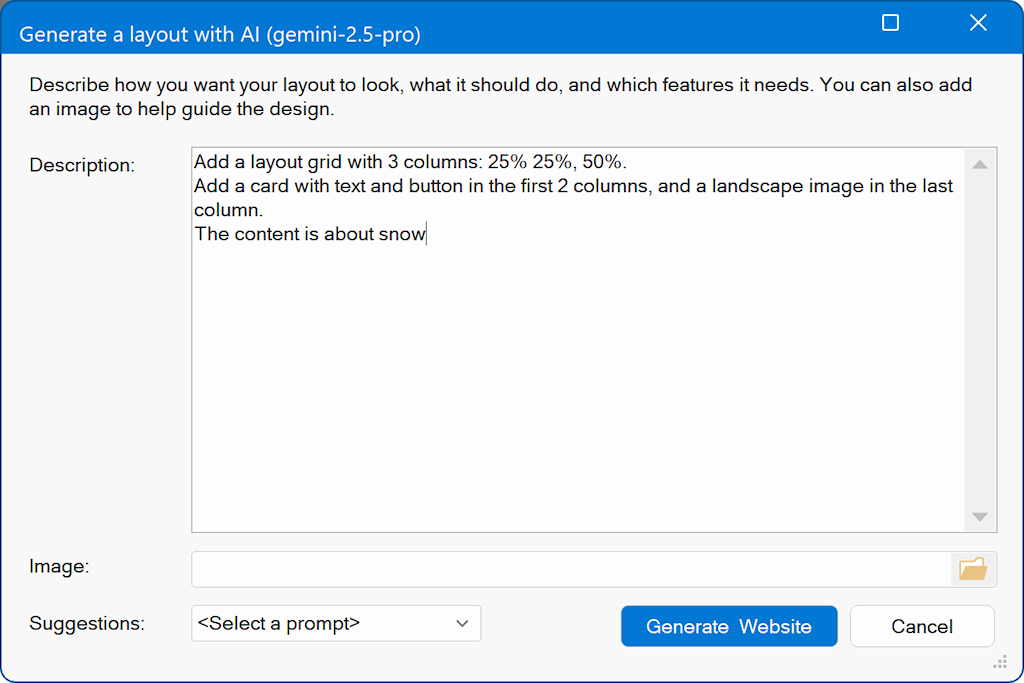
This description will generate something like this: