Site Variables
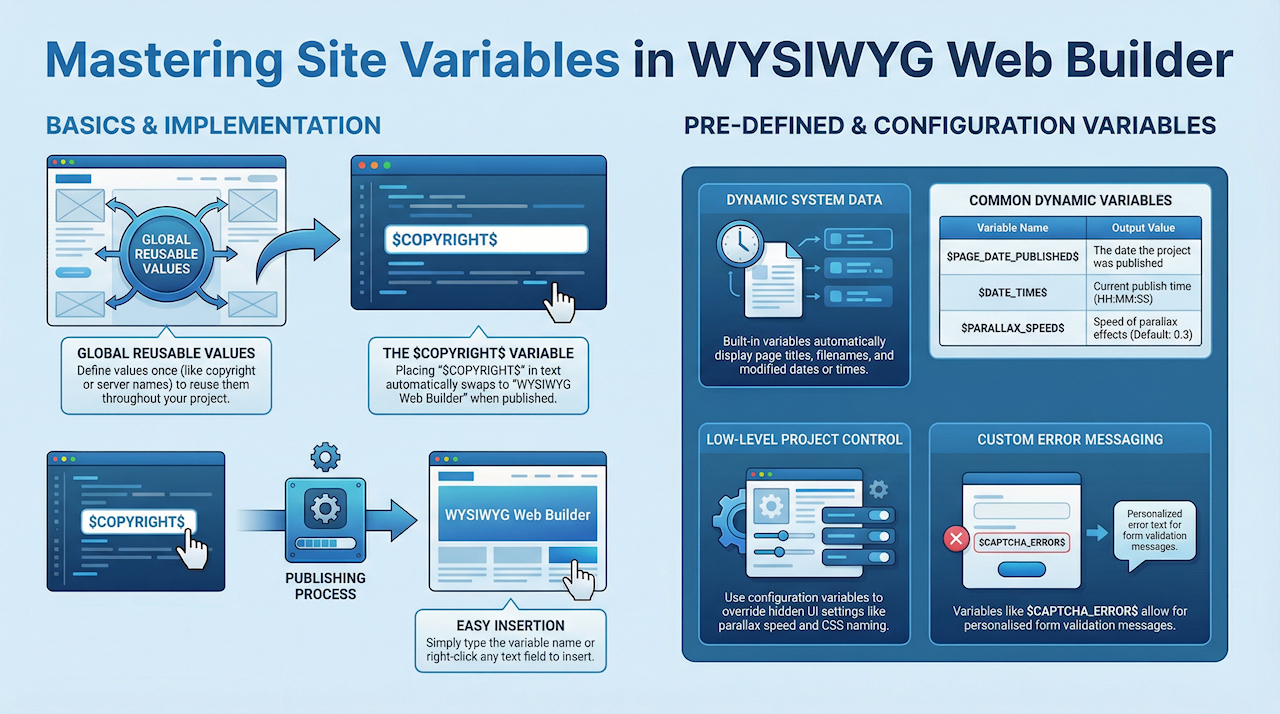
Site Variables—also referred to as user-defined variables—allow you to define global values that can be reused throughout your project. They are especially useful for information that may change over time, such as copyright notices, server names, usernames, passwords, or any other frequently updated value.
When you publish your project, each variable will automatically be replaced with the value you assigned. You can use these variables anywhere: in text, on pages, or within property fields.
When you publish your project, each variable will automatically be replaced with the value you assigned. You can use these variables anywhere: in text, on pages, or within property fields.
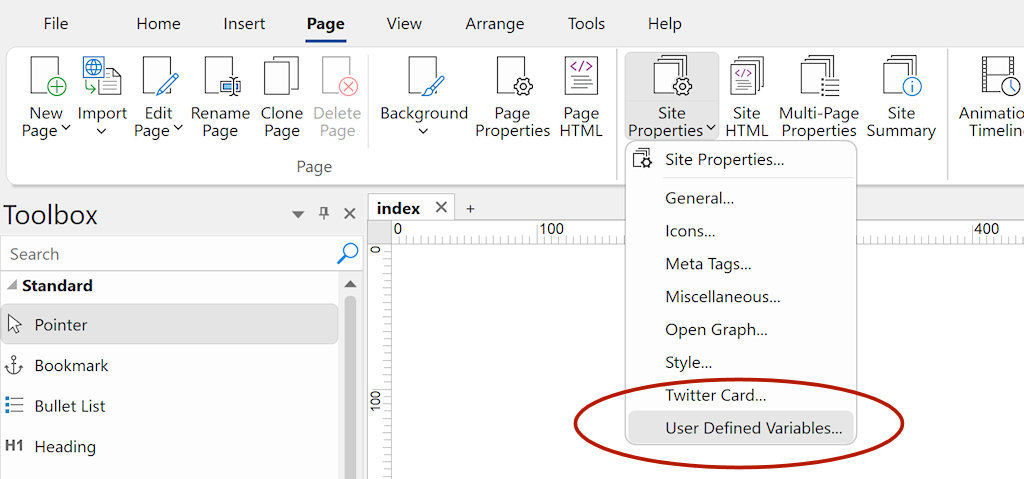
Example
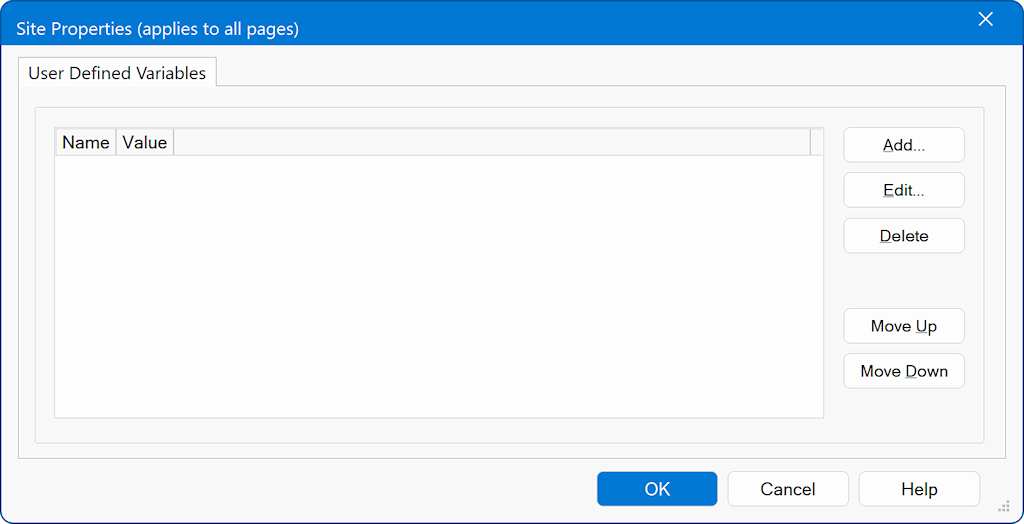
Name: $COPYRIGHT$
Value: WYSIWYG Web Builder
During publishing, every occurrence of $COPYRIGHT$ in the project is replaced with WYSIWYG Web Builder.
Name: $COPYRIGHT$
Value: WYSIWYG Web Builder
During publishing, every occurrence of $COPYRIGHT$ in the project is replaced with WYSIWYG Web Builder.
Using Variables
You can use variables anywhere: in text, on pages, or within property fields. Just type the name of the variables in the text input field.
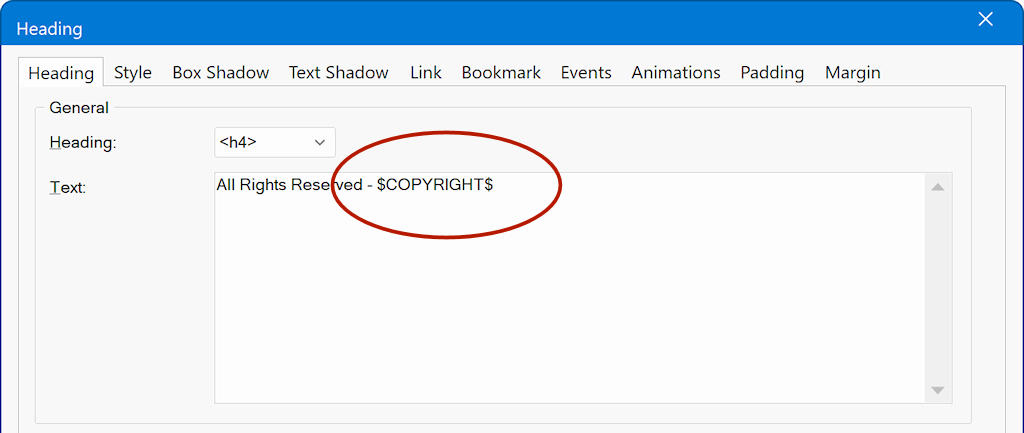
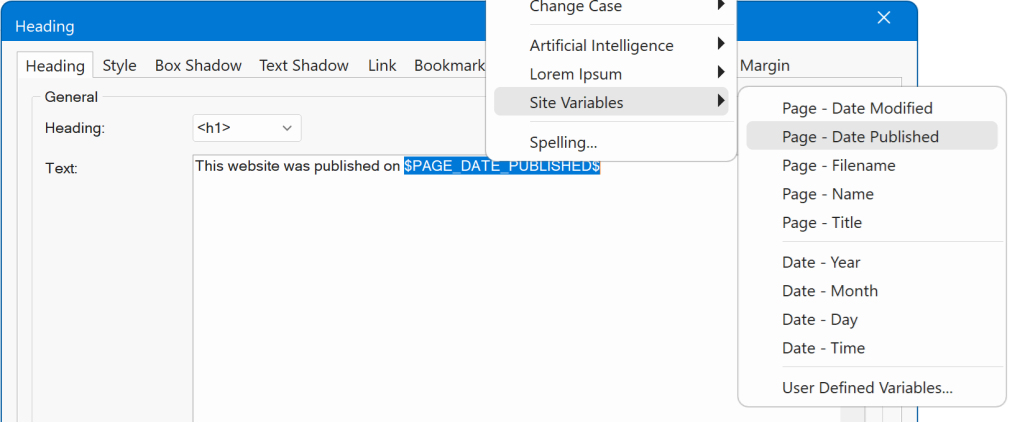
You can use variables anywhere—within text, on pages, or in property fields. Simply type the variable name into any text input field, but you can also insert variables via the context menu (right click) of most text input fields.
Pre-defined Variables
The software also includes several built-in predefined variables that can display various types of information, such as the page name, page title, last modified date, publish date, time, and more.
$PAGE_ NAME$
will be replaced by name of the page (without file extension).
$PAGE_ TITLE$
will be replaced by the page title as specified in the page properties.
$PAGE_ FILENAME$
will be replaced by the filename of the page (with file extension).
$PAGE_ DATE_MODIFIED$
inserts date of the last update.
$PAGE_ DATE_PUBLISHED$
inserts publish date
$DATE_ YEAR$, $DATE_ MONTH$, $DATE_ DAY$
insert year, months, day as numbers
$DATE_ TIME$
inserts publish time HH:MM:SS
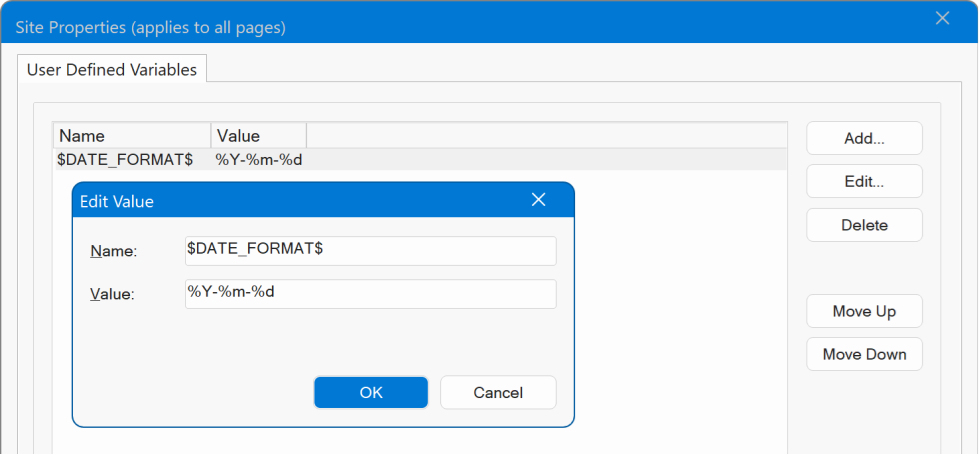
The default format for modified and publish dates is YYYY-MM-DD , but this can be changed via site variable $DATE_FORMAT$
For example:
%Y-%m-%d, 1999-03-28
%A, %B %d, %Y results Friday, March 19, 1999
More information about format codes can be found here:
https://learn.microsoft.com/en-us/cpp/c-runtime-library/reference/strftime-wcsftime-strftime-l-wcsftime-l
$PAGE_ NAME$
will be replaced by name of the page (without file extension).
$PAGE_ TITLE$
will be replaced by the page title as specified in the page properties.
$PAGE_ FILENAME$
will be replaced by the filename of the page (with file extension).
$PAGE_ DATE_MODIFIED$
inserts date of the last update.
$PAGE_ DATE_PUBLISHED$
inserts publish date
$DATE_ YEAR$, $DATE_ MONTH$, $DATE_ DAY$
insert year, months, day as numbers
$DATE_ TIME$
inserts publish time HH:MM:SS
The default format for modified and publish dates is YYYY-MM-DD , but this can be changed via site variable $DATE_FORMAT$
For example:
%Y-%m-%d, 1999-03-28
%A, %B %d, %Y results Friday, March 19, 1999
More information about format codes can be found here:
https://learn.microsoft.com/en-us/cpp/c-runtime-library/reference/strftime-wcsftime-strftime-l-wcsftime-l
Configuration Variables
In addition to display variables, there are also several variables that control low-level settings not accessible through the standard UI options.
$FORMERROR_EMAIL$
Customize form error message. The default text is: The specified email address is invalid!
$FORMERROR_FILESIZE$
Customize form error message.
The default text is: The size of $key (file: $upload_SrcName[$i]) is bigger than the allowed \" . $max_filesize/1024 . \" Kbytes!
$FORMERROR_URL$
Customize form error message. The default text is: URLs are not allowed!
$FORMERROR_DOMAIN$
Customize form error message. The default text is: No email can be sent to the specified domain
$FORMERROR_HONEYPOT$
Customize form honeypot error message. The default text is: Spam detected.
$CAPTCHA_ERROR$
This can be used to specify a custom captcha error message. The default text is: CAPTCHA verification failed.
$PARALLAX_SPEED$
Specifies the speed at which the parallax effect runs. 0.0 means the image will appear fixed in place, and 1.0 the image will flow at the same speed as the page content. The default is 0.3.
$SKROLLR_FORCEHEIGHT$
This option applies to scroll transitions: CSS3 Animations and Transitions
Makes sure the document is high enough that all key frames fit inside. For example, you specified an offset of 1000, but the content only makes the document 500px high. skrollr will ensure that you can scroll down the whole 1000px
Default is: 'false'
$SKROLLR_MOBILECHECK$
This option applies to scroll transitions: CSS3 Animations and Transitions
This option can be used to enable checks for mobile devices. Default is: false. which means that scrolling transitions are enabled on mobile devices.
Important note: Some (older) mobile browsers do not provide 'real' scrolling events, but only trigger a start and finish event so any scrolling effect only takes place when the user has stopped moving the page so the animation would happen all at once at the end.
$SKROLLR_SMOOTHSCROLLING$
This option applies to scroll transitions: CSS3 Animations and Transitions
Smooth scrolling smoothens animations. When you scroll down 50 pixels, the animations will transition instead of jumping to the new position. Default is: 'false'
$SCROLLREVEAL_AUTOHIDE$
When using onscrollreveal events with css animate (css), then the target object will be initially hidden automatically (via class 'visibility-hidden').
This behavior can be overwritten by adding $SCROLLREVEAL_AUTOHIDE$ with value 'false' to the user defined variables.
$PROJECT_CSS$
Normally, the name of the global style sheet is based on the project name (e.g. projectname.css).
This system variable makes it possible to specify a different name. For example: globalstyles
$FORMERROR_EMAIL$
Customize form error message. The default text is: The specified email address is invalid!
$FORMERROR_FILESIZE$
Customize form error message.
The default text is: The size of $key (file: $upload_SrcName[$i]) is bigger than the allowed \" . $max_filesize/1024 . \" Kbytes!
$FORMERROR_URL$
Customize form error message. The default text is: URLs are not allowed!
$FORMERROR_DOMAIN$
Customize form error message. The default text is: No email can be sent to the specified domain
$FORMERROR_HONEYPOT$
Customize form honeypot error message. The default text is: Spam detected.
$CAPTCHA_ERROR$
This can be used to specify a custom captcha error message. The default text is: CAPTCHA verification failed.
$PARALLAX_SPEED$
Specifies the speed at which the parallax effect runs. 0.0 means the image will appear fixed in place, and 1.0 the image will flow at the same speed as the page content. The default is 0.3.
$SKROLLR_FORCEHEIGHT$
This option applies to scroll transitions: CSS3 Animations and Transitions
Makes sure the document is high enough that all key frames fit inside. For example, you specified an offset of 1000, but the content only makes the document 500px high. skrollr will ensure that you can scroll down the whole 1000px
Default is: 'false'
$SKROLLR_MOBILECHECK$
This option applies to scroll transitions: CSS3 Animations and Transitions
This option can be used to enable checks for mobile devices. Default is: false. which means that scrolling transitions are enabled on mobile devices.
Important note: Some (older) mobile browsers do not provide 'real' scrolling events, but only trigger a start and finish event so any scrolling effect only takes place when the user has stopped moving the page so the animation would happen all at once at the end.
$SKROLLR_SMOOTHSCROLLING$
This option applies to scroll transitions: CSS3 Animations and Transitions
Smooth scrolling smoothens animations. When you scroll down 50 pixels, the animations will transition instead of jumping to the new position. Default is: 'false'
$SCROLLREVEAL_AUTOHIDE$
When using onscrollreveal events with css animate (css), then the target object will be initially hidden automatically (via class 'visibility-hidden').
This behavior can be overwritten by adding $SCROLLREVEAL_AUTOHIDE$ with value 'false' to the user defined variables.
$PROJECT_CSS$
Normally, the name of the global style sheet is based on the project name (e.g. projectname.css).
This system variable makes it possible to specify a different name. For example: globalstyles