Rive Animations
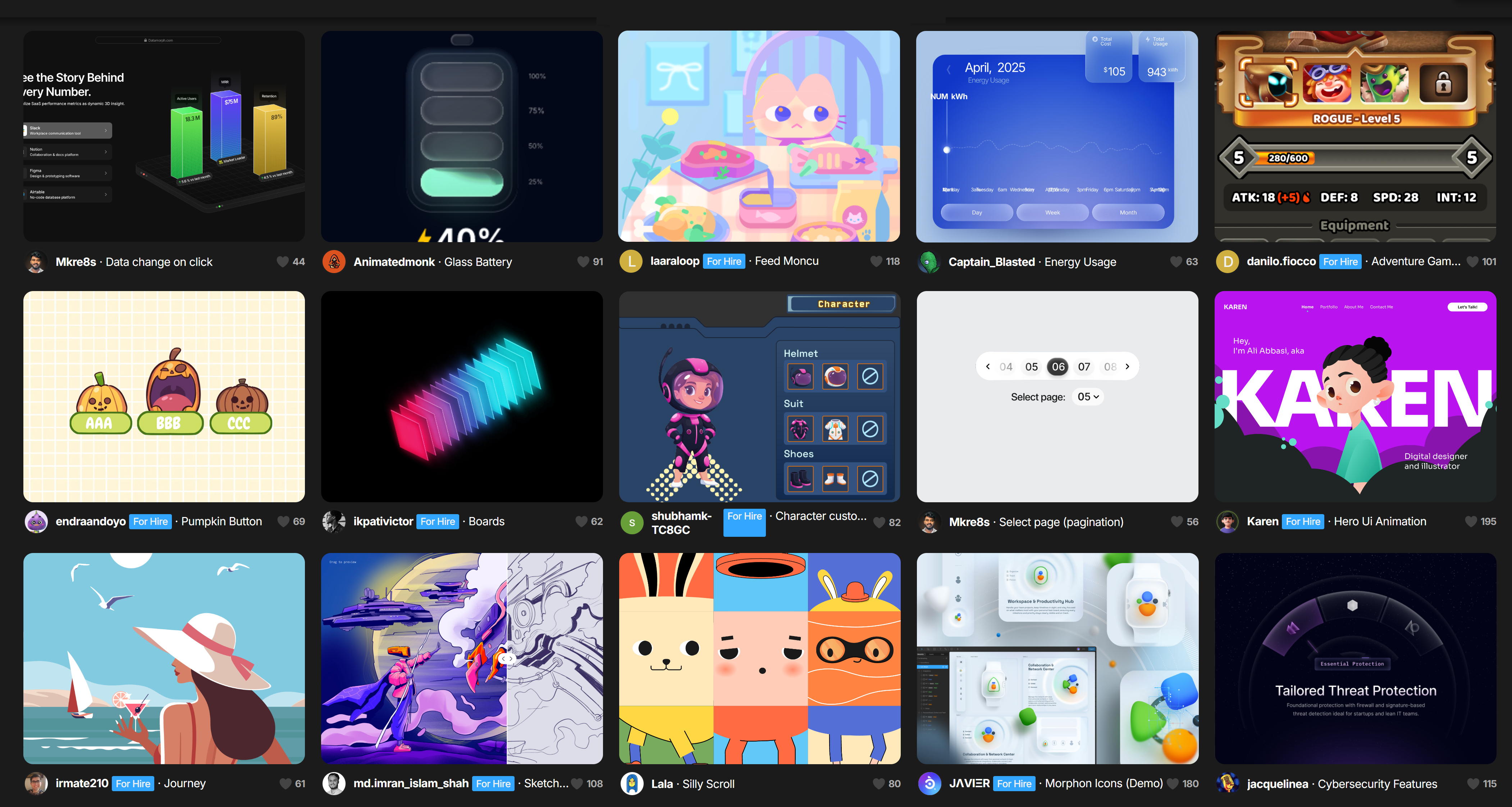
A Rive animation is an interactive, vector-based animation created with the Rive design tool. Unlike traditional animations, Rive lets designers build real-time, responsive animations that can react to user input (like clicks, taps, or game logic). They’re lightweight, can run in apps, games, or on the web, and are often used for UI animations, icons, characters, and interactive effects.
Rive is often viewed as the spiritual successor to Flash, but built for a far more dynamic and modern workflow. While Rive and Lottie share similar goals, they differ in capability — Lottie plays pre-rendered motion graphics, whereas Rive uses a real-time animation engine that enables interactive, state-driven animations that respond to user input and app logic.
Rive is often viewed as the spiritual successor to Flash, but built for a far more dynamic and modern workflow. While Rive and Lottie share similar goals, they differ in capability — Lottie plays pre-rendered motion graphics, whereas Rive uses a real-time animation engine that enables interactive, state-driven animations that respond to user input and app logic.
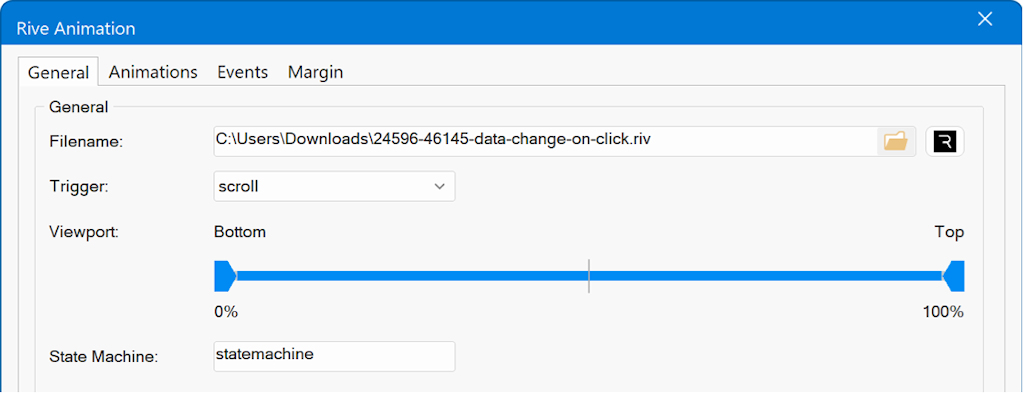
Filename
Specifies the filename of the animation. This can be either a file on your computer or URL.
For example: https://www.yourwebsite/riveanimation.riv
A huge selection of Rive animations can be found here:
https://rive.app/marketplace/
You can also create your own animations with Rive Editor: https://rive.app/editor
Trigger
Specifies when the the animation is played.
Animations can be triggered on page load, hover, click, scroll, or through events.
• none, animation is paused
• on load, animation is played on page load.
• on hover, animation is played on mouse over
• on click, animation is played on click.
• scroll, animation is played when the object scroll into view. The viewport range slider can be used to specify the exact position.
State Machine
The name of the state machine you want to run.
State machines are created inside the Rive file and define how the animation reacts to user actions (hover, click, events, etc.).
You can see the available state machines in the Rive Editor or in the list provided by the animation’s developer.
Artboard (Optional)
A string representing the artboard you want to display. If not supplied the default is selected.
Fit
Fit determines how the Rive content will be fitted to the view: Cover, Contain etc.
Alignment
Alignment determines how the content aligns with respect to the view bounds.
Preview Image
This will be displayed in the workspace as a place holder, instead of the Lottie logo.
Note that this image will not be published. It is only used during design time.
Full Width
For use in layout grids only. Specifies whether the animation is full width.
Maximum Width
Specifies the maximum width when full width is true.
Position
Specifies how the animation is displayed inside its container.
Specifies how the animation is displayed inside its container:
• relative, the animation will be displayed as standard inline element.
• absolute, the animation will be displayed as background or foreground of its container. For example, when it's inside a layer or layout grid. The z-index determines whether the animation is in the background (z-index = -1) or foreground (z-index > 1)
Specifies the filename of the animation. This can be either a file on your computer or URL.
For example: https://www.yourwebsite/riveanimation.riv
A huge selection of Rive animations can be found here:
https://rive.app/marketplace/
You can also create your own animations with Rive Editor: https://rive.app/editor
Trigger
Specifies when the the animation is played.
Animations can be triggered on page load, hover, click, scroll, or through events.
• none, animation is paused
• on load, animation is played on page load.
• on hover, animation is played on mouse over
• on click, animation is played on click.
• scroll, animation is played when the object scroll into view. The viewport range slider can be used to specify the exact position.
State Machine
The name of the state machine you want to run.
State machines are created inside the Rive file and define how the animation reacts to user actions (hover, click, events, etc.).
You can see the available state machines in the Rive Editor or in the list provided by the animation’s developer.
Artboard (Optional)
A string representing the artboard you want to display. If not supplied the default is selected.
Fit
Fit determines how the Rive content will be fitted to the view: Cover, Contain etc.
Alignment
Alignment determines how the content aligns with respect to the view bounds.
Preview Image
This will be displayed in the workspace as a place holder, instead of the Lottie logo.
Note that this image will not be published. It is only used during design time.
Full Width
For use in layout grids only. Specifies whether the animation is full width.
Maximum Width
Specifies the maximum width when full width is true.
Position
Specifies how the animation is displayed inside its container.
Specifies how the animation is displayed inside its container:
• relative, the animation will be displayed as standard inline element.
• absolute, the animation will be displayed as background or foreground of its container. For example, when it's inside a layer or layout grid. The z-index determines whether the animation is in the background (z-index = -1) or foreground (z-index > 1)
Note
Rive Animations may not play in local browser preview, due to security restrictions of the browser (CORS policy).
In that case, you will have to publish the page or use local server preview to see the result.
Rive Animations may not play in local browser preview, due to security restrictions of the browser (CORS policy).
In that case, you will have to publish the page or use local server preview to see the result.