Gradients
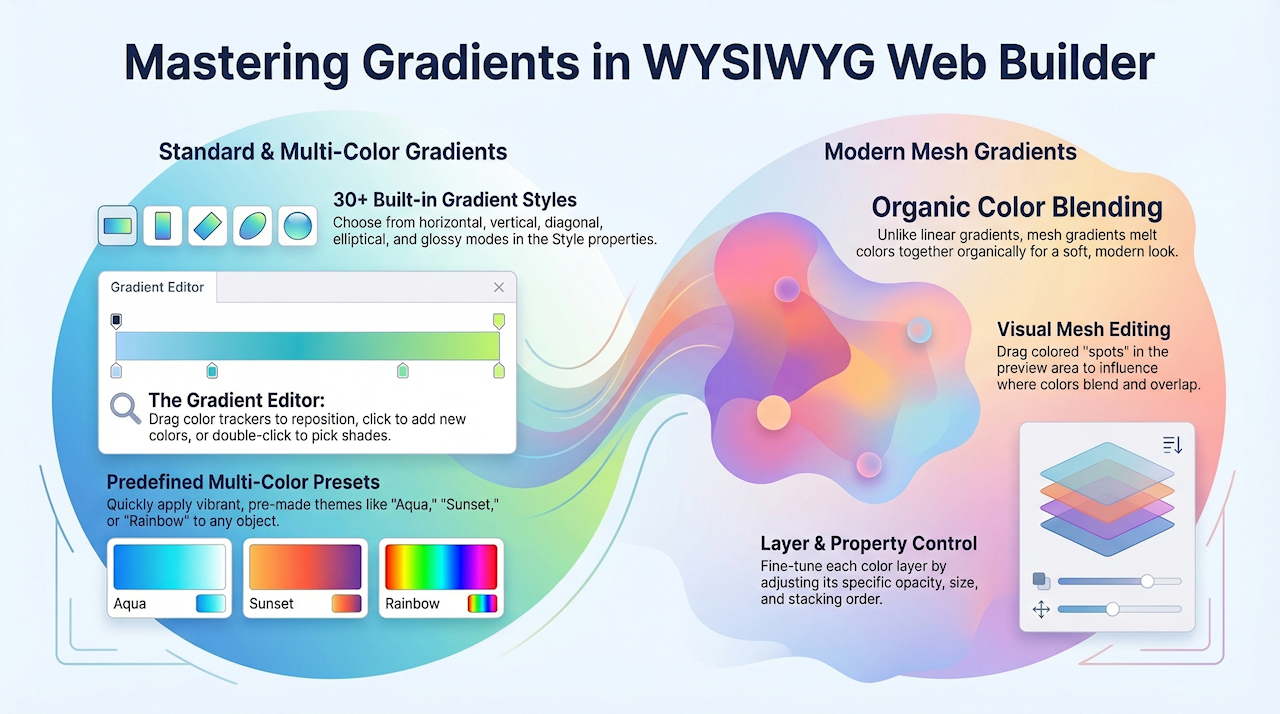
Besides standard solid backgrounds, many objects also support gradients. Gradients are smooth transitions between two or more colors, allowing you to create more visually appealing and modern background effects. WYSIWYG Web Builder even supports mesh gradients. A mesh gradient is a soft, colorful background where several colors melt into each other—not just in a straight line or perfect circle, but organically across the whole area.
Select a Gradient
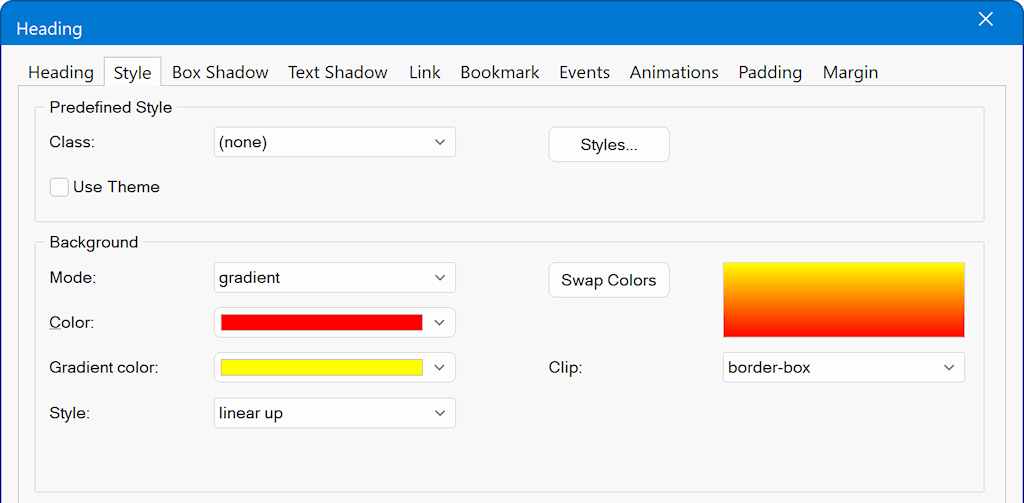
In many objects, you can choose gradient colors in the Style properties by setting the background mode to Gradient.
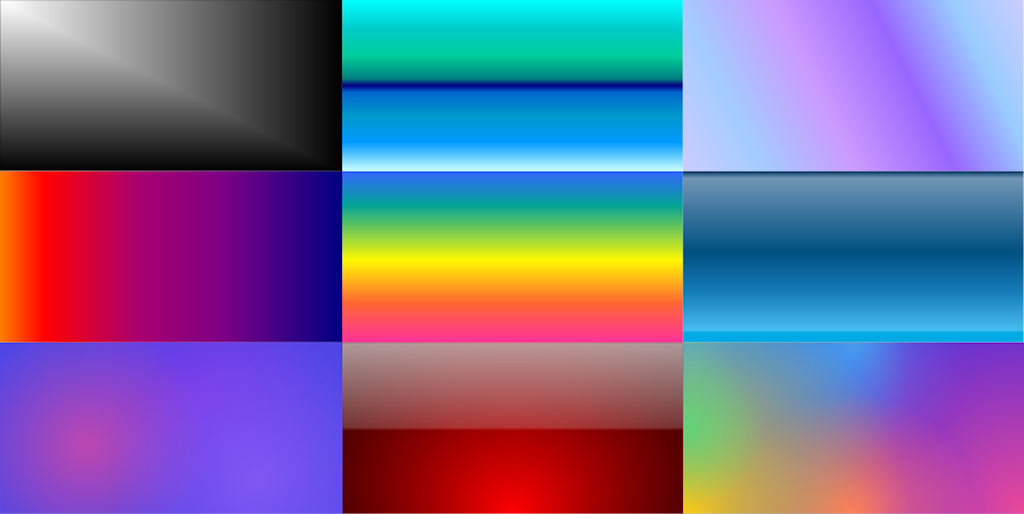
The Style setting determines the look and direction of the gradient—for example, horizontal, vertical, diagonal, elliptical, glass, glossy, and many more. There are over 30 different gradient styles to choose from!
The Style setting determines the look and direction of the gradient—for example, horizontal, vertical, diagonal, elliptical, glass, glossy, and many more. There are over 30 different gradient styles to choose from!
Multi-color Gradient
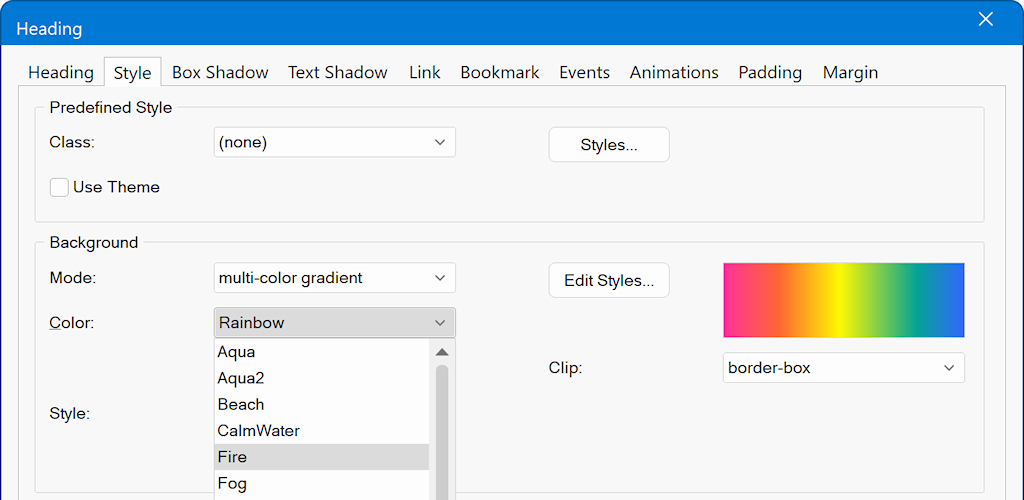
When the background mode is set to 'multi-color gradient, you can select one of the predefined gradients, like Aqua, Sunset, Rainbow etc.
Gradient Editor
The gradient editor can be used to create your own multiple color gradients.
The editor can be opened via 'Edit Styles' in the style properties or via the Style Manager in the Tools menu.
The editor can be opened via 'Edit Styles' in the style properties or via the Style Manager in the Tools menu.
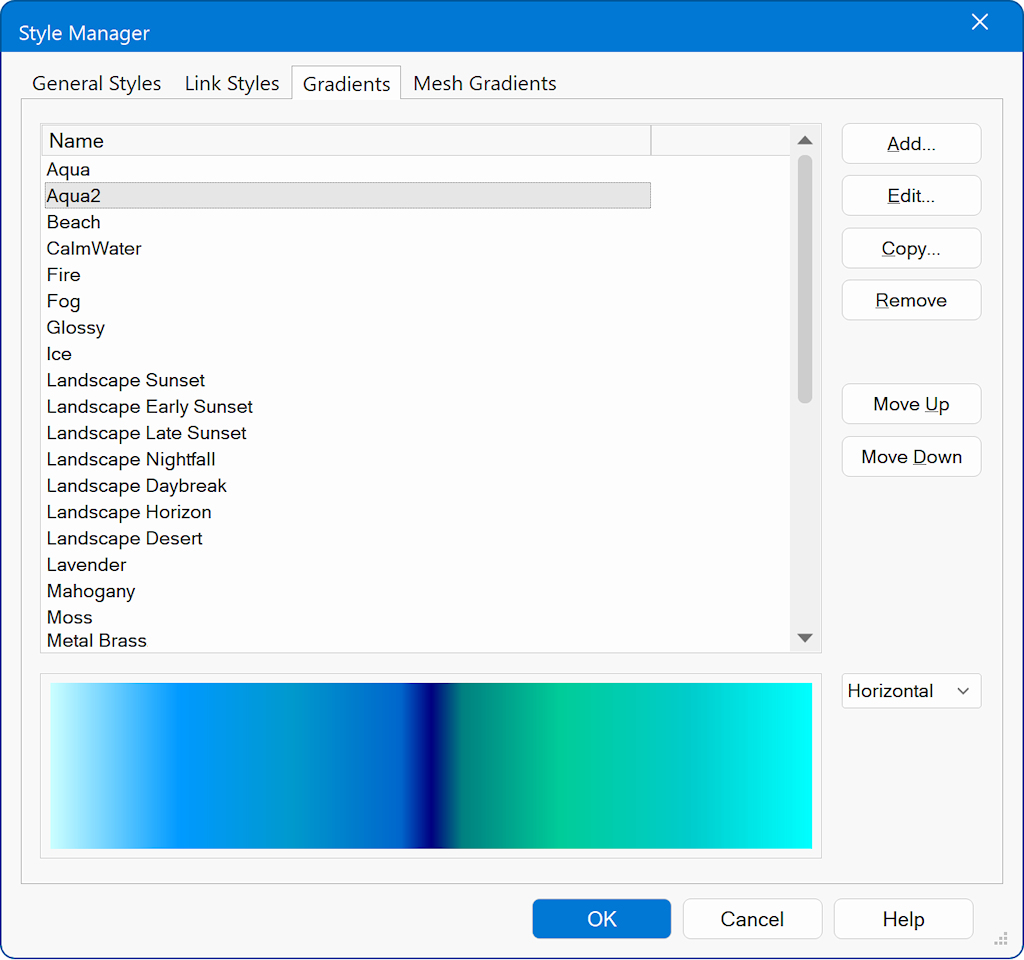
Click Add to create a new multi-color gradient, or Edit to modify an existing one.
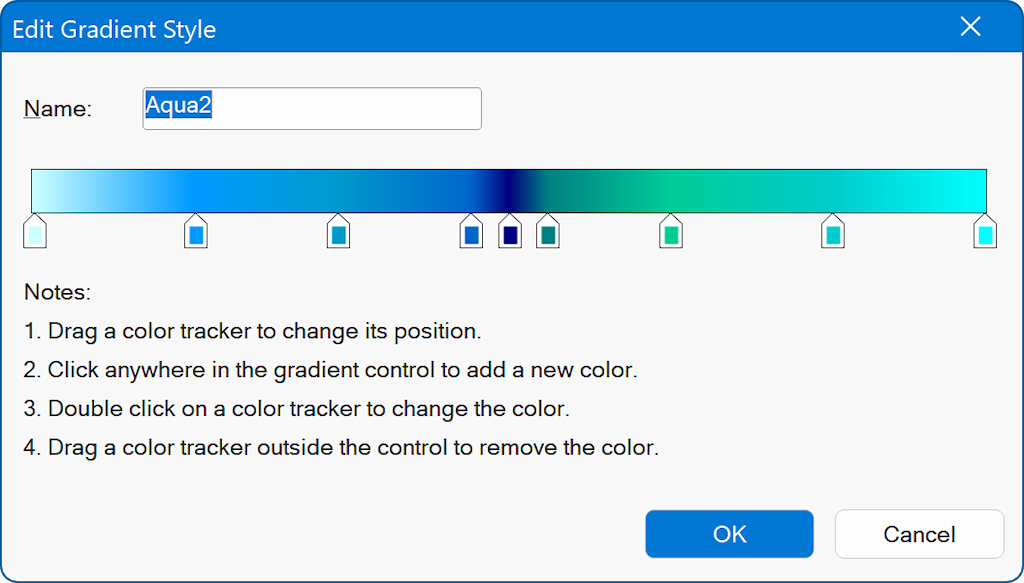
When you open the Edit Gradient Style window, you can customize a multi-color gradient using the color trackers shown beneath the gradient bar.
Name
At the top, enter a name for your gradient style.
Reposition colors
Drag any color tracker left or right to change where that color appears in the gradient.
Add a new color
Click anywhere inside the gradient bar to insert a new color tracker at that position.
Change a color
Double-click a color tracker to open the color picker and select a different color.
Remove a color
Drag a color tracker downward, outside the gradient bar, to delete it.
When you're satisfied with the gradient, click OK to save your changes, or Cancel to exit without saving.
Name
At the top, enter a name for your gradient style.
Reposition colors
Drag any color tracker left or right to change where that color appears in the gradient.
Add a new color
Click anywhere inside the gradient bar to insert a new color tracker at that position.
Change a color
Double-click a color tracker to open the color picker and select a different color.
Remove a color
Drag a color tracker downward, outside the gradient bar, to delete it.
When you're satisfied with the gradient, click OK to save your changes, or Cancel to exit without saving.
Mesh Gradients
A mesh gradient is a soft, colorful background where several colors melt into each other—not just in a straight line or perfect circle, but organically across the whole area. Looks modern and organic compared to plain linear or radial gradients. Great for hero sections, website backdrops or other backgrounds. Mesh gradients have their own editor in the Style Manager.
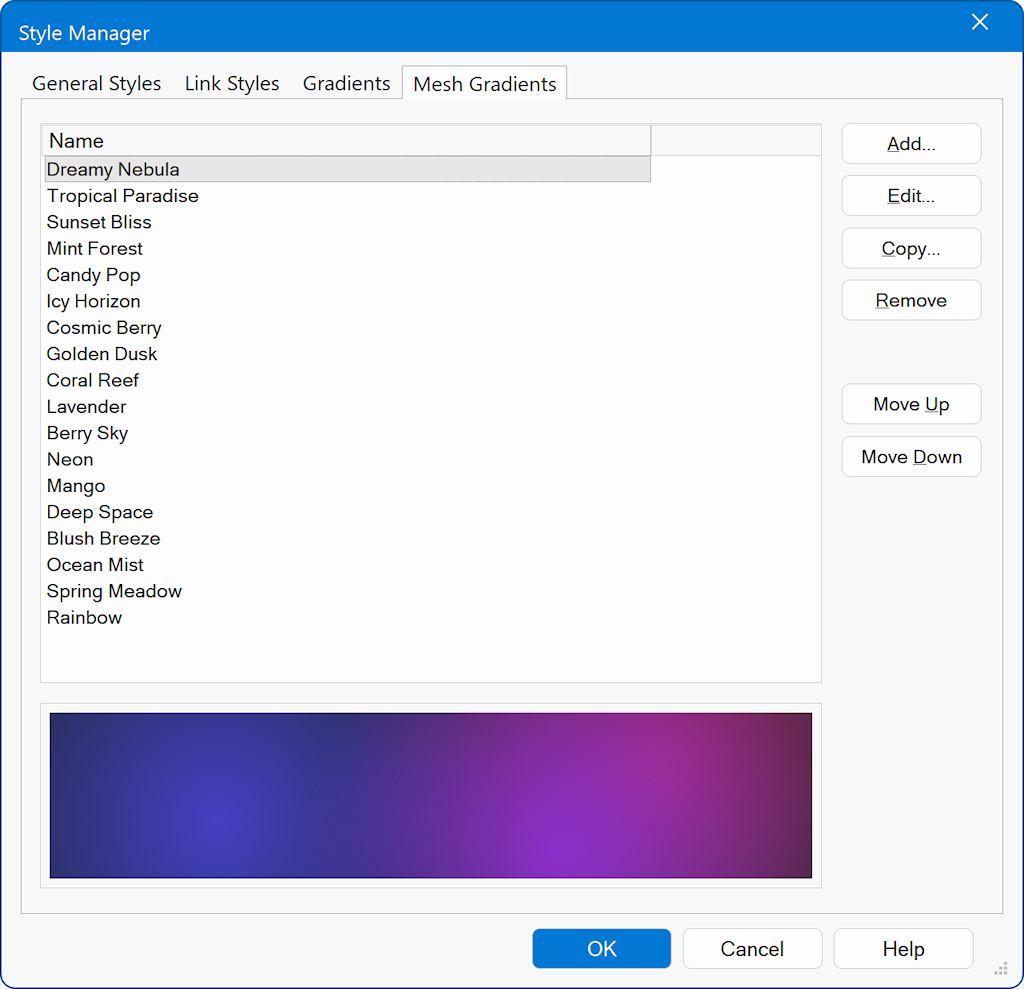
Edit Mesh Gradient
The Mesh Gradient Editor allows you to blend multiple colored layers across the background by positioning color “spots” within a preview area.
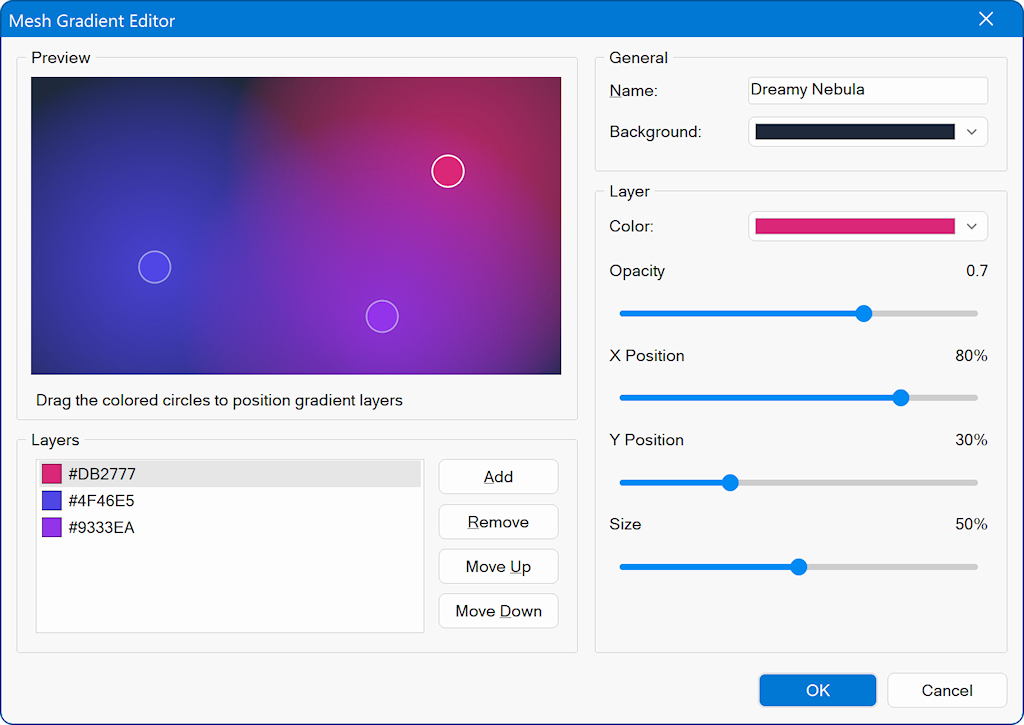
The Mesh Gradient Editor allows you to blend multiple colored layers across the background by positioning color “spots” within a preview area.
Preview Area
The large area on the left shows a live preview of your mesh gradient.
Each colored circle represents a gradient layer.
Drag a circle to reposition that layer and change where its color influences the gradient.
Name
Enter a name for your mesh gradient preset.
Background
Choose a background color that sits behind all gradient layers.
Layers Panel
The list on the bottom-left displays all gradient layers used in the mesh.
Each layer corresponds to one of the colored circles in the preview.
Add – Create a new gradient layer.
Remove – Delete the selected layer.
Move Up / Move Down - Change the stacking order of layers (which can affect blending).
Layer Properties
When you select a layer from the list, you can adjust its appearance:
Color
Choose the color for the selected layer.
Opacity
Controls how transparent or intense the color appears.
X Position
Adjusts the horizontal position of the color spot.
Y Position
Adjusts the vertical position.
Size
Sets the spread or radius of the color influence.
Each adjustment updates the preview in real time, allowing you to fine-tune the effect.
Click OK to save the mesh gradient, or Cancel to exit without saving.
Preview Area
The large area on the left shows a live preview of your mesh gradient.
Each colored circle represents a gradient layer.
Drag a circle to reposition that layer and change where its color influences the gradient.
Name
Enter a name for your mesh gradient preset.
Background
Choose a background color that sits behind all gradient layers.
Layers Panel
The list on the bottom-left displays all gradient layers used in the mesh.
Each layer corresponds to one of the colored circles in the preview.
Add – Create a new gradient layer.
Remove – Delete the selected layer.
Move Up / Move Down - Change the stacking order of layers (which can affect blending).
Layer Properties
When you select a layer from the list, you can adjust its appearance:
Color
Choose the color for the selected layer.
Opacity
Controls how transparent or intense the color appears.
X Position
Adjusts the horizontal position of the color spot.
Y Position
Adjusts the vertical position.
Size
Sets the spread or radius of the color influence.
Each adjustment updates the preview in real time, allowing you to fine-tune the effect.
Click OK to save the mesh gradient, or Cancel to exit without saving.